

Welcome to Shiftbase! In this quick start guide, we’ll explain how you can organise your account, add employees and shifts, so you can swiftly start making a schedule. Use this article as your springboard into the Shiftbase functionality. This article is rich with handy references and resources to get you set up succesfully.
Keep this article by your side while you learn Shiftbase!
Contents
Step 1: Organisation
As the first step, confirm your account information and preferences in the General settings.
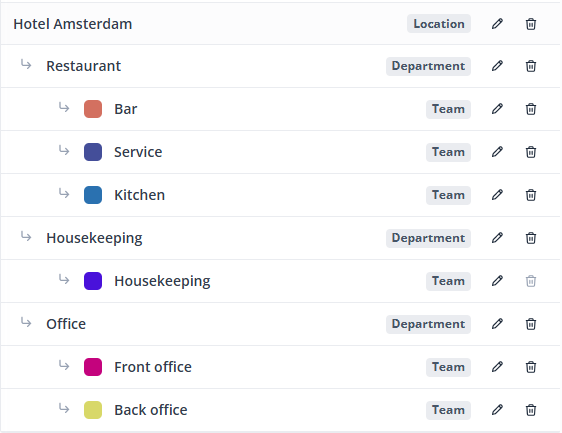
Second, think about how you would like your account to be structured. This is done in the Settings > Organisation. It is important to have the right department structure. Find a more detailed description and some examples of specific industries here.
Step 2: Employees
Security
Before we start adding employees, it is wise to have a look at the Security settings. Decide if it is mandatory to use Multi-Factor Authentication to further secure your data. You can always enable MFA at a later stage.
In addition, you will also find an overview of Permissions. By default, there are four roles within Shiftbase, each with their set of permissions which you can edit to your preference. Have a look through the permissions and read up on them in this article.
Contract types
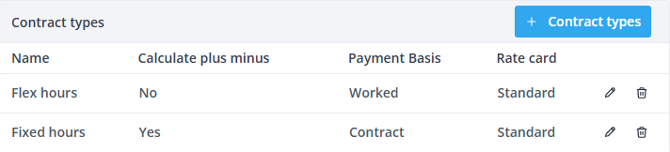
Equally important is to know about the contract types for employees. On contract type level, you decide the payment basis, absence policy and overtime policies. In essence, we distinguish between two types of contracts:
- Fixed contract where employees are paid out according to their contract hours.
- Flex contract where employees are paid out according to the amount of hours they have worked.
Adding employees
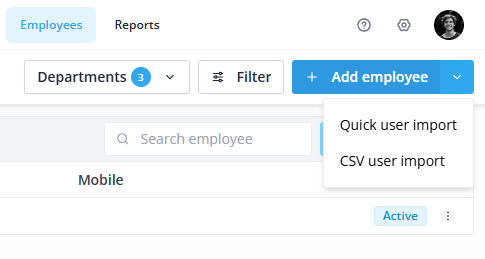
Now it's time to start adding your employees! Head to the Employees menu and click on + Add employee. If you wish to speed up the process of adding employees, have a look at the Quick user import or CSV user import.
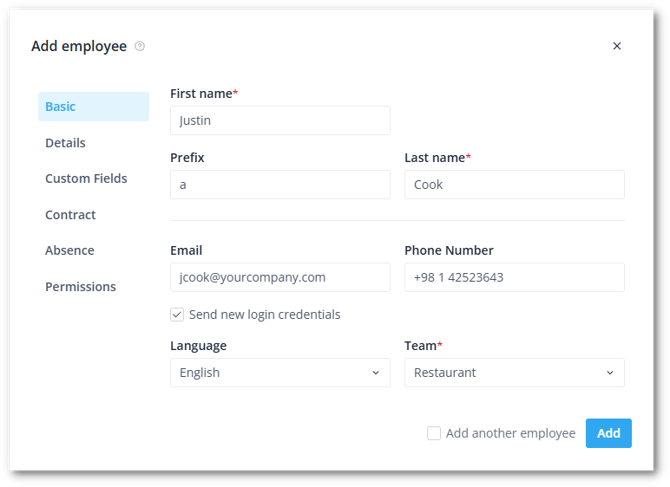
You can start out by filling in
- Details: their name, email address and to which team they belong
- Contract: their contract type being flex or fixed. Fill in the amount of contract hours per day for the fixed employees.
- Permissions: Which role this employee fulfils within Shiftbase.
💡 Tip: For the contract, it is recommended to set the start date to the month in which you begin using Shiftbase. This does not have to correspond to the actual situation.
If you do use the exact start date from the past, you will also need to add all of the time sheets from from the past or make a correction to the employee’s plus/minus balance.
When the email address of an employee is added, they will receive an email to set up their password to login. This email will also contain a link to Shiftbase Mobile app. To inform your employees on how to use Shiftbase, you can share the Employee handbook.
More information about the Mobile app can be found here.


Step 3: Shifts
Templates
As your employees are set up, you can now start creating Shift templates to start scheduling them. Navigate to Settings > Shifts to start creating templates for the types of shifts you have in your company. These templates can be adjusted to specific times when you schedule your employees. Read up on all options in this article.
💡 Tip: Every department has their unique Shifts.
Scheduling
Now that you have some templates, you can start adding shifts for your employees. Head to the Schedule and find the shift templates under the Shifts/Teams button. You can now start dragging and dropping your Shifts.
Once a shift is scheduled, you can click on the pencil icon to edit details.
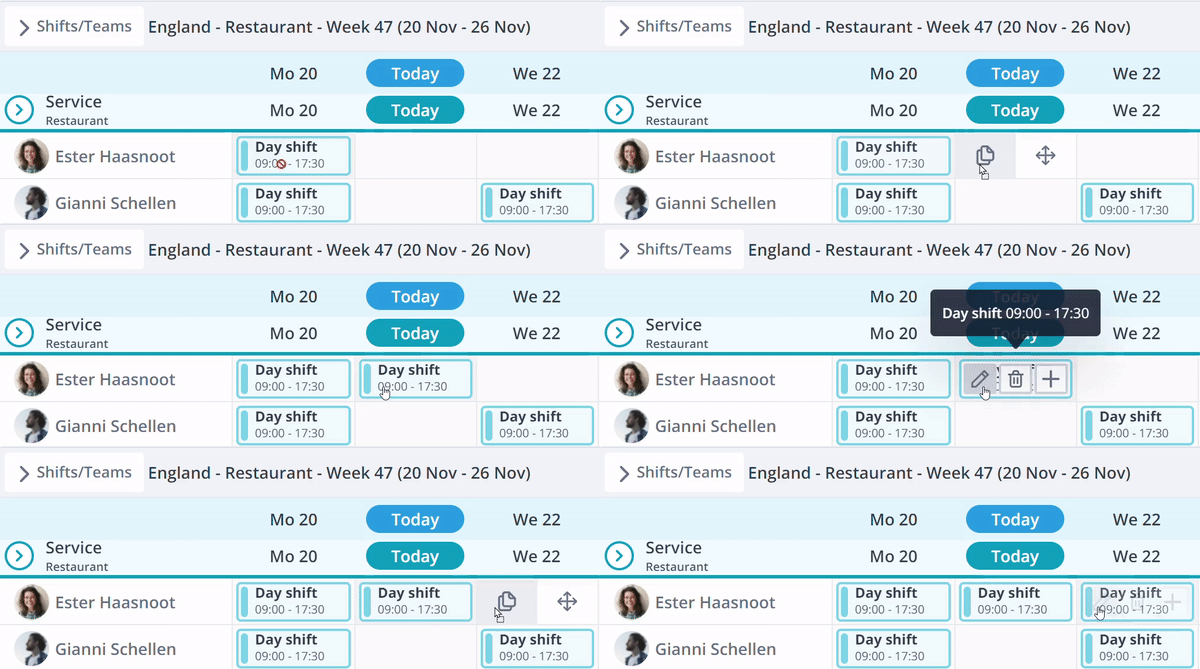
💡 Tip: With dragging shifts, you can either copy or move them depending if you put them left or right of the field. Hold them on the left side to copy and on the right side to move.
You can also repeat shifts. Learn more about adding, editing & deleting shifts.
Schedule tools
Here, we will share with you an arsenal of methods and tools to schedule optimally. From required shifts to cost-efficient planning. We will highlight all tools.
-
Open Shifts let employees apply for shifts themselves.
-
Required Shifts prevents you from being short-staffed or over-staffed.
-
Exchanging Shifts gives employees the possibility to seamlessly switch shifts with each other.
-
Specify availability to let employees indicate if they are or aren't available to be scheduled.
-
Events to highlight action items, agenda points or reminders.
-
Weather forecast to quickly see and plan for a rainy or sunny day.
-
Copy schedule lets you easily copy previous schedules.
-
Publishing the schedule to give you room to arrange future schedules without employees seeing them yet.
-
Sending schedule can let you email the schedule to employees.
-
Calendar Sync to have Shiftbase schedules, absences and events in your personal calendar application.
-
Budgeting & forecasting raises your awareness on cost-efficient planning.
-
Compliance prevents you from having violations of regulations and laws in your schedule.
Step 4: Time tracking
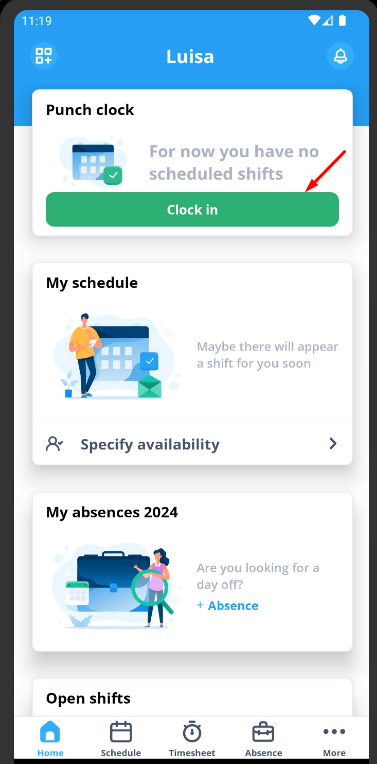
With Shiftbase, we use the schedule to plan ahead and the timesheet to record actual worked hours. There are a couple of methods to register worked hours. You can decide to
- Record hours automatically or manually
- Let employees clock in and out via the mobile app or Kiosk.
- Use an integration via the App center
To pick the right method of time tracking for your organisation, learn about each method of time registration and their advantages in this dedicated article.
📝 Note: The schedule is a forecast, while the time registration reflects what actually happened.
If an employee arrived an hour late yesterday, you will need to adjust this in the time registration instead of the schedule.
Changing it only in the schedule will not automatically update the time registration.
Step 5: Absence management
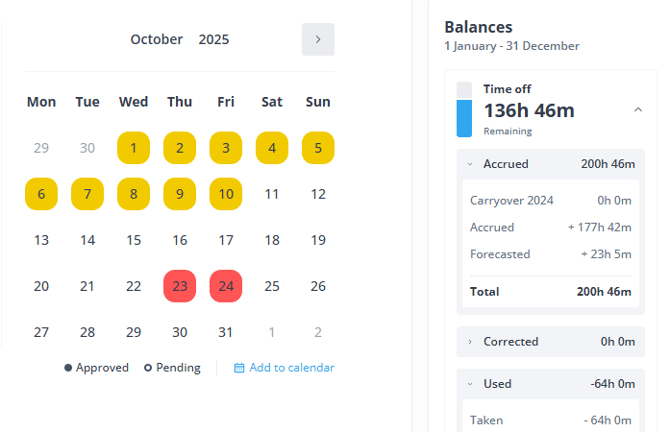
Absences like holidays, sickness and special leave types can be easily managed within Shiftbase. Employees can request a holiday via their account. You can manage their request, edit, approve or reject if needed.
Policies
In Shiftbase, you manage all rules and settings about absences at the Absence Policy. On the policy level, you decide how holiday hours are accrued and which absence types and balances are relevant for the policy. In turn, the absence policy is connected to a contract type so you can create different policies for different contract types. Navigate to Settings > Absence to view the policies.
Balances
With absence balances, you keep track of the leave entitlement of each employee and decide if they expire in the next month or year. The time-off balance accrues hours over time. The accrual amount is dependent on the accrual factor, which is made on the full entitlement of a full-time contract.
💡 Note: How much leave is accrued per worked hour is determined by the accrual factor. This accrual factor is based on the full leave entitlement of a full-time contract (e.g. 25 days per year).
Based on the accrual factor, everyone accrues leave proportionally. A part-time employee accrues the same number of leave hours per worked hour, but will ultimately have fewer total leave hours than a full-time employee because the part-time employee works fewer hours.
Should you decide to use two or more balances, you can read on how to set them up here.
Restrictions
Set up restrictions to prevent approving too many absences in a certain period.
💡 Tip: Are you getting started with setting up absences? Continue here with the overview.
Step 6: Surcharges
If surcharges are relevant in your organisation, you can use rate cards to specify a surcharge on for a specific time of day.
If you canclulate a surcharge by working overtime, use the overtime policy. The rate card and overtime policy are connected to a contract type.
Step 7: Integrations
To finalize your account, you can connect Shiftbase to applications or devices you are already using to maximize functionality and connectedness in your organisation.
Payroll integrations are commonly used to send the worked hours from the timesheet straight to your payroll software. If Shiftbase already registers worked hours, why not export them directly to your payroll software?
Time registration and POS integrations are also widely used to import clock working times and turnover to gain Insights on labour cost percentages and other crucial KPIs.
See if your used applications are available, or orient yourself to add a new integration for payroll, time tracking, reservations or HR tools here.
If you have found your integration, use the help center to connect them to Shiftbase successfully.
