Besides the schedule where you plan your shifts ahead, the timesheet is at the core of Shiftbase to administer what the actual worked hours have been. In the Timesheet menu, you will find the worked hours of your employees. In the end, the timesheet serves to approve the recorded hours and eventually prepare a payroll report.
Contents
Time tracking & settings
Shiftbase offers you a multitude of ways to record working hours. Generally, we can categorize each method as manual registration or clocking. In this article, we will cover the basics of the Timesheet menu and how to add and edit worked hours manually. If you wish to work with clocking hours, learn more in this article.
Additional settings to the timesheet are managed in Settings > Time tracking > General. Here, you can enable Surcharges, Meal registration and Mileage. Also, you can enable Copy schedule to timesheet, which saves you time by taking the start and end time of a shift and prefill these into the timesheet.
💡 Tip: If you wish to clock working hours, you should disable the setting Copy schedule to timesheet.
Add working hours
In Shiftbase, there are a couple of places where you can add worked hours.
- Timesheet: To record worked hours over the Timesheet, navigate to the tab Timesheet on top and click on the + Worked hours button on the top right, or navigate to the department in the timesheet and click on + Add worked hours in the header.

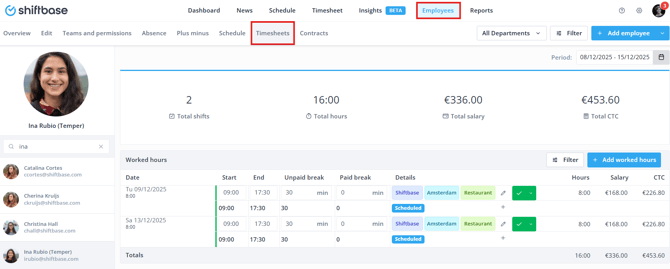
- Employee profile: To view and add hours of a specific employee, you might find this method more convenient. Select an employee in the Employees menu and open their timesheets tab.
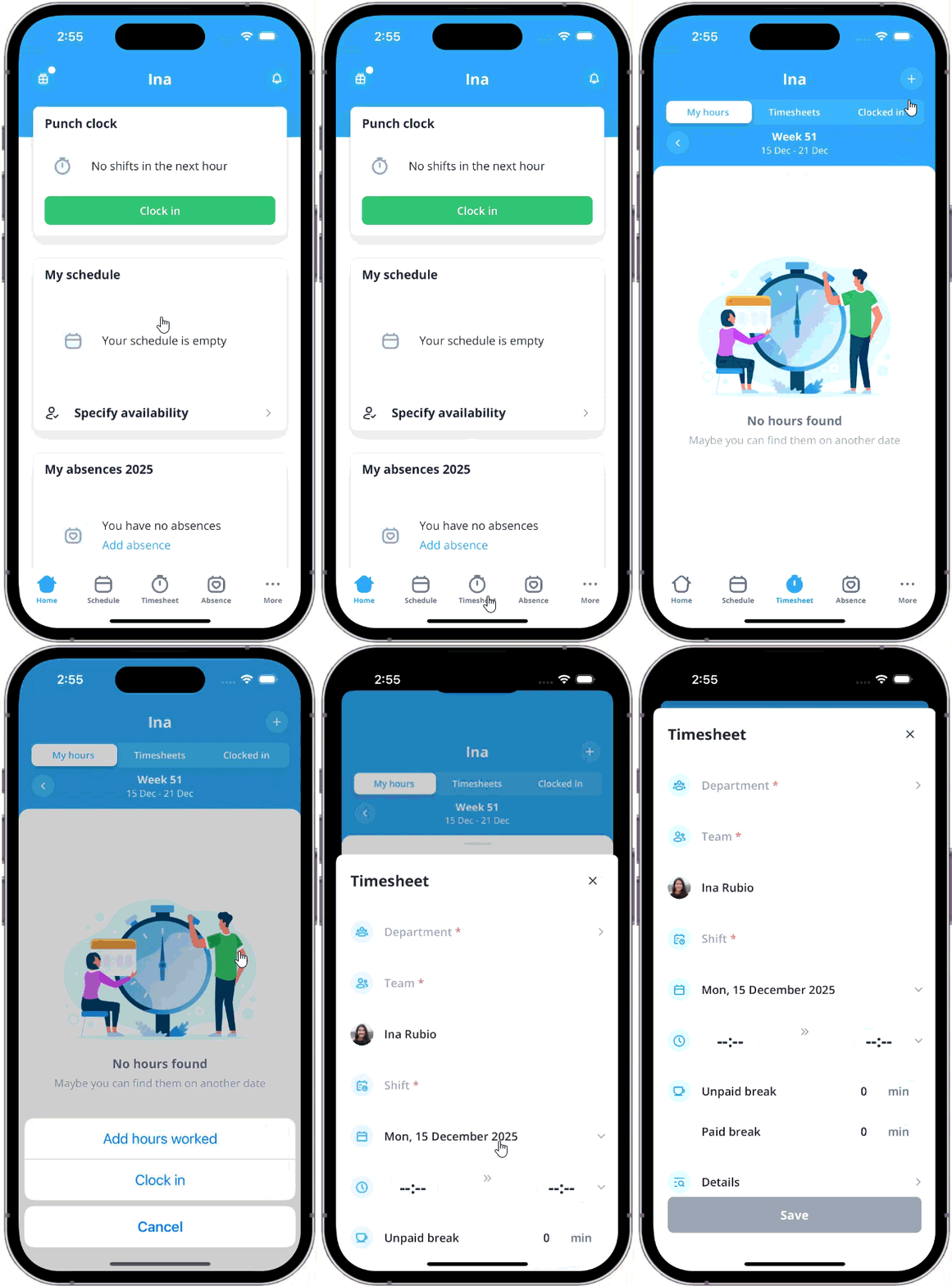
- Mobile app: When you work remote, you can add worked hours via the mobile app. Select the bottom menu for Timesheet and select the + on the top right of the page to start adding hours for yourself or an employee.
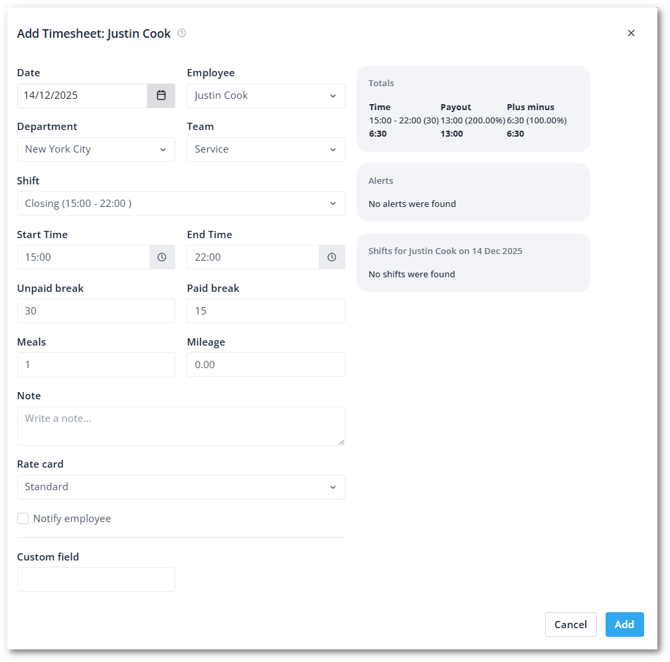
In all the above ways mentioned, you will be presented with a form to fill out for your employee. Below, we explain each field.
-
Date: The date on which the shift took place.
-
Employee: The employees for whom the hours are to be recorded.
-
Department: The department in which the shift took place.
-
Team: The team in which the shift took place.
-
Shift: The desired type of shift.
-
Start time & End time: The working hours for the shift.
-
Unpaid break: Duration of the break in minutes. The unpaid break will not be counted as worked hours.
-
Paid break: Duration of a paid break in minutes.
-
Meals: Insert the number of meals consumed in this shift. (Premium)
-
Mileage: Insert the number of travelled distance. (Premium)
-
Note/Details: Any description of the service.
-
Rate card: Optionally select a different Rate card from the one in the employee's Contract type.
-
Notify employee: Select this option to send a notification to the employee about the added timesheet.
-
Custom fields: If you require additional details in a shift, you can set up a custom field.
Timesheet navigation
In the Timesheet overview, you can select and filter down to what you wish to see. Decide on the left, whether you want to see the timesheet of the day, week or month, depending on the date selector in the middle of the navigation.

By using the Filter, you can add more fields and columns to change the registration.
Timesheet filters
-
Show schedules: All scheduled shifts will be shown in the Timesheet.
-
Show absence: All absences are shown in the overview.
-
Show all employees: This will show all employees, including employees without worked hours.
Status
Indicates which Statuses of registrations you want to see in the time registration overview.
-
Approved: All hours registered that have been approved by a manager
-
Pending: All hours registered that have not yet been approved or declined.
-
Declined: All hours registered that have been declined.
Type
-
Other: All hours registered other than via clocking.
-
Currently clocked in: Shows all employees who are currently clocked in.
-
Clocked hours: All clocked hours registered are displayed in the overview.
Conflicts
By checking Show only conflicts, only the hours with conflicts are shown. Examples are double shifts on a Day or overlapping absence and hour registration. If this filter is active, you will only see conflicts, but no times without conflicts any more.
Custom fields
All Custom fields in the Timesheet can be displayed in the timesheet overview as desired.
Edit working hours
To edit a specific registration, you can click on the pencil icon. The same fields as explained in Add working hours will become available to edit.

💡 Tip: A manager, HR department, or company owner may use the hours for payroll or something else. It could be confusing if the hours can still be changed after a certain point. Therefore, you can use the option to open and close the timesheet. This way, you prevent hours from being modified after a certain date.
Approve working hours
If the time registration is correct, you can now approve the worked hours. To do so, you can change the status from pending to approved.
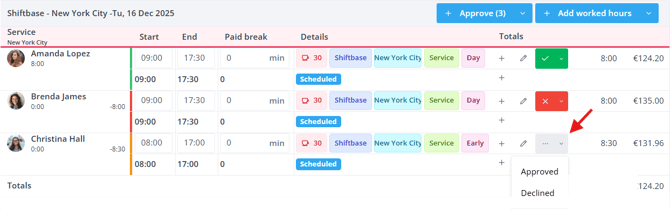
💡 Tip: Timesheets cannot be deleted. Instead, you can decline a registration. If you do not wish to see declined registrations, you can disable the Filter > Declined.
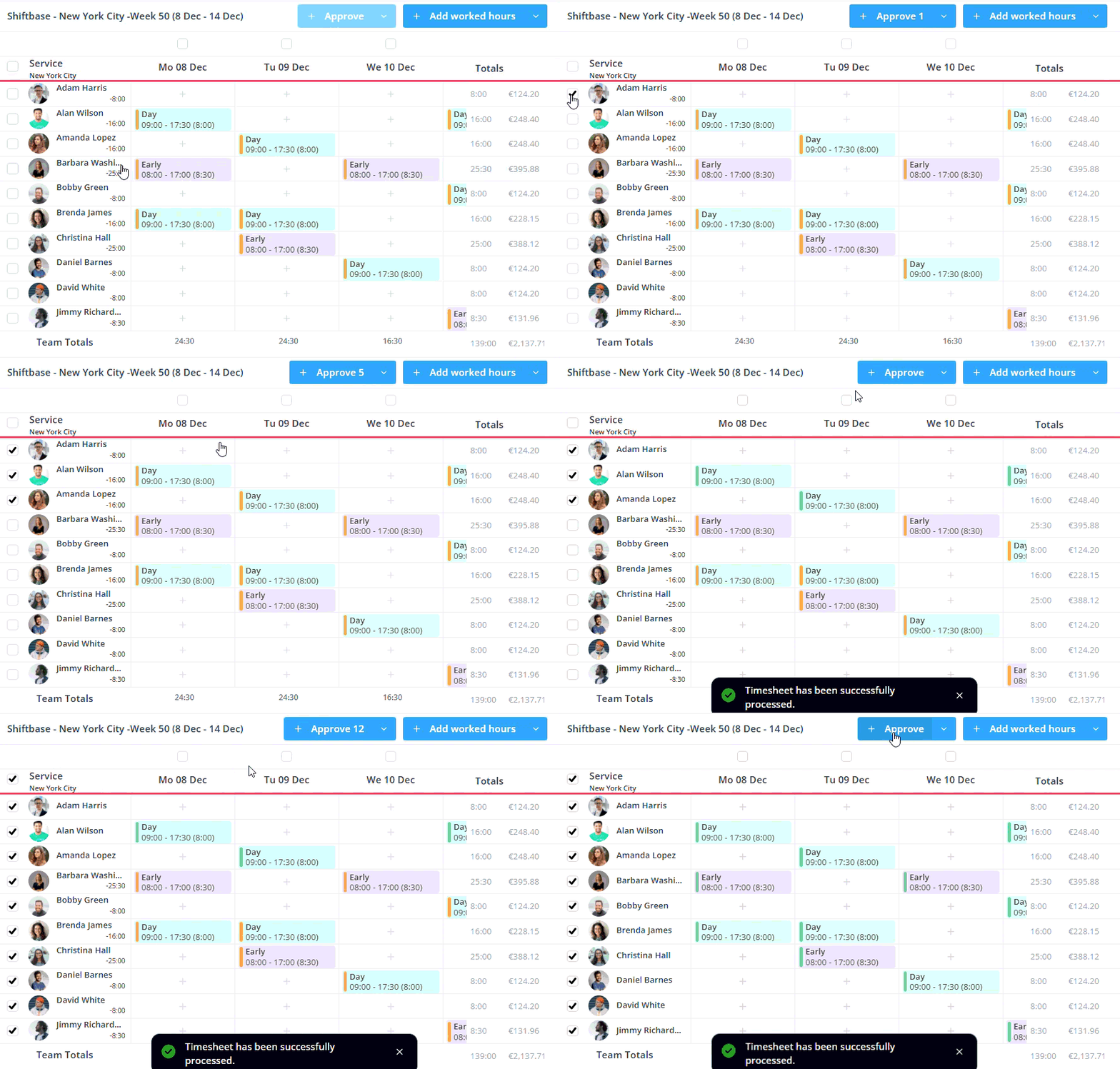
Instead of approving timesheets one by one, you can use the + Approve button to approve all sheets in the current view. By selecting the week or monthly view, you can select specific timesheets to approve, reject or restore to pending.