

The Performance page is your central dashboard for tracking performance metrics across your business. It is specifically designed to help you control labour expenses, improve scheduling efficiency, and optimize profitability.
Whether you run a restaurant, retail store, or service location, Performance gives you a quick way to understand how different teams and departments are performing. The Performance page is available on both web and mobile, ensuring you can access your performance data anytime, anywhere.
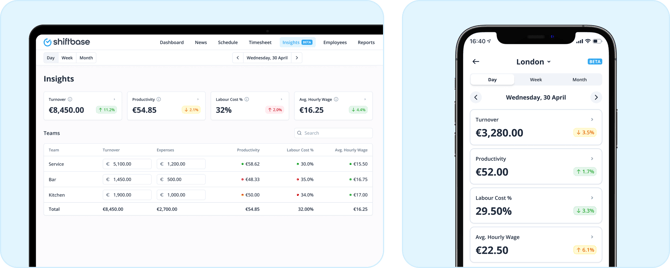
🗒️ Note: Performance will eventually become a paid add-on, but during Early Access, you get full access at no additional cost. Take advantage of it now!
Contents
Overview
The main goal of the Performance dashboard is to manage, reduce, and report on your labour costs in relation to the turnover you generate. Below, we outline the steps to help you get started with Performance and begin saving costs.
-
The first step is to set up your Targets in the settings. With targets, you define when performance is on, below, or above your KPIs.
-
Once targets have been set up, you can decide how to add your company’s turnover into Shiftbase. You can manually enter turnover for each day, import it via CSV, or connect your Point of Sale (POS) system through the App Center.
- Set up the Turnover forecast for the coming period.
-
After turnover has been entered in Shiftbase, you can report on KPIs such as productivity, average hourly wage, and labour cost percentage. Data sources include approved timesheets and the salary of each employee within the department. For some KPIs, we derive data from forecasted turnover to project performance into upcoming schedules.
-
Finally, you can optimise your schedule by analysing performance against your targets and previous periods, and by forecasting future turnover better.
POS Integration
If you are working with one of our supported POS systems, you can connect it to Shiftbase to automate the import of turnover data. Visit this page to see which systems we currently support.
💡 Tip: A POS integration is not required to use Performance. You can also manually input turnover or upload it in bulk via CSV.
Targets & KPIs
Below is a detailed explanation of each KPI and how it is calculated.
Turnover
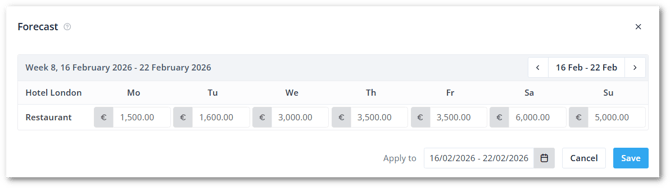
Add a Turnover forecast for the coming period. By making a forecast, you allow calculation of the KPIs and schedule accordingly.
The actual turnover can be entered manually, imported in bulk via CSV, or synced through a POS integration. By default, turnover is registered at team level. Some teams within your department may not directly generate revenue, but their hours contribute to the day’s service.
If your business registers turnover at department or location level, you can use Turnover Allocation. This allows you to enter turnover at department or location level.
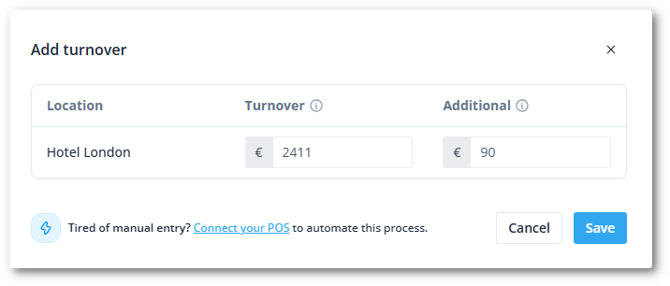
To enter turnover, click the + icon to open the side panel. You can choose to enter turnover manually or import it via CSV.
-
Manual input: Enter the turnover for the selected day and optionally add additional turnover that is not part of your primary source.
-
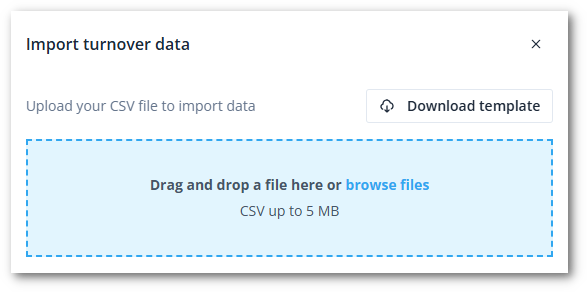
Import via CSV: Download the template, fill it in, and upload it back into Performance.
-
The columns are based on the date range you have selected on the Performance page.
-
The rows are based on your turnover allocation settings.
-
💡 Tip: If you can’t find the turnover menu, switch to the day view and open the side panel.
Productivity (EUR)
The amount of revenue generated for every hour worked by your employees.
Formula: Turnover forecast ÷ scheduled hours
Colour indicators:
✅ Green: At or above target
⚠️ Orange: 0–3% below target
❌ Red: More than 3% below target
Average Hourly Wage (EUR)
The average cost per labour hour based on the current mix of employees.
Formula:
Total salary ÷ scheduled hours
Colour indicators:
✅ Green: At or below target
⚠️ Orange: Up to 10% above target
❌ Red: More than 10% above target
Labour cost percentage
The proportion of total turnover spent on employee wages, shown as a percentage.
Formula:
(Total salary ÷ turnover forecast) × 100
Colour indicators:
✅ Green: At or below target
⚠️ Orange: Up to 2% above target
❌ Red: More than 2% above target
💡 Tip: For past dates where actual turnover has been entered, the forecasted turnover in the formula is replaced with actual turnover.
Comparing data
You can compare dashboard performance against your targets. You also have the option to compare results to the previous period or the same period last year.
Select the day, week, or month view to define the comparison period.
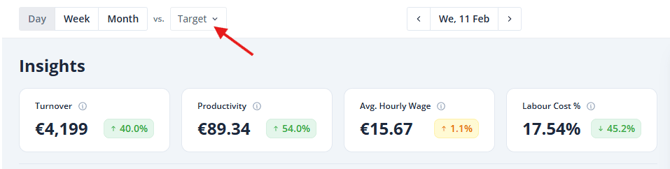
📝 Note: Target-related data includes surcharges and Cost of Company (Ctc).
Diary
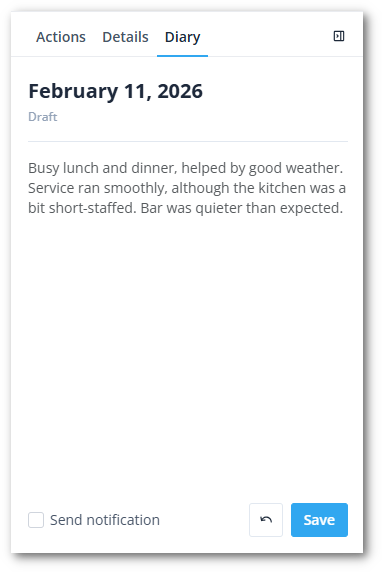
In the side menu, you can add internal notes. Planners and managers can record daily business updates or other noteworthy events.
You can also send notifications to users. Set recipients for diary updates in Settings > Time tracking > Notifications. The notification is sent when you click Save.
Details
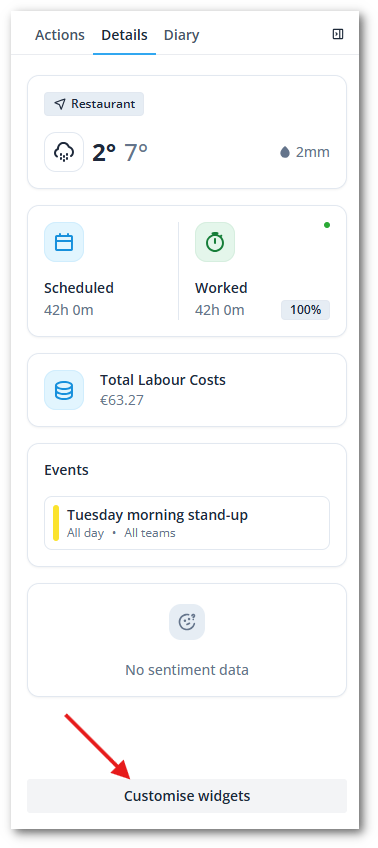
In the Side menu, you can customize your widgets to get more context on your KPIs. The following widgets can be displayed.
-
Weather: View weather information to understand its impact on your business.
To set this up, go to Settings > Organisation and add an address to your departments. Get a detailed instruction here. -
Scheduled vs. Worked: Compare scheduled hours with worked hours to assess scheduling accuracy.
-
100% means scheduled and worked hours are equal.
-
If more hours are worked than scheduled, the percentage increases.
-
-
Total labour costs: Displays the total salary costs, including Cost to Company.
-
Events: Events added to the schedule appear here. Read more about Events.
-
Sentiment: Using the Employee Sentiment Analyzer, you can assess how the day was experienced and whether employee sentiment aligns with your KPIs. Read more about Sentiment tracking.
Insights in the Schedule
To view performance metrics directly in the schedule, enable the Show targets filter. This displays a metric for deployable hours.
Deployable hours represent the maximum available labour hours to meet the productivity target: (Turnover forecast ÷ Productivity target)
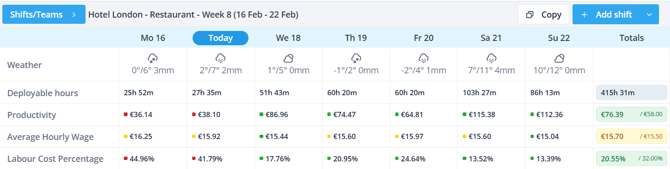
💡 Tip: Enable the Show weather forecast filter to add additional performance context.
Reporting
We offer two reporting options for Performance.
-
Weekly performance update: An automated email sent every Monday morning with the previous week’s Performance results. This email contains all dashboard data. To set this up, navigate in Shiftbase to Settings > Performance > Notifications.
-
On-demand Performance report: In Shiftbase, navigate to Reports > Performance > KPI Overview. Select the desired date range and filter by department(s) and timesheet status (approved, pending, and/or declined).
💡 Tip: To get an overview of the diary entries or employee sentiment, use the Diary and Sentiment reports.
Permissions
To configure who sees what, you can set up permissions. Navigate in Shiftbase to Settings > Security > Permissions.
Here, you can decide which role has access to information displayed on the Performance page. By default, planners have the rights to view and edit every menu on the Performance page.
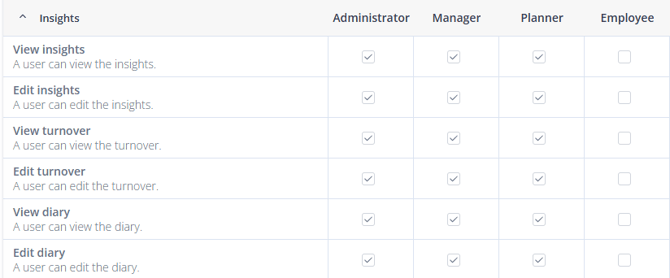
Permissions regarding viewing salaries and labour costs are as follows
-
Productivity, Labour Cost %, Deployable Hours
Accessible to users with View Performance, Edit Roster, or Add Roster permissions. -
Average Hourly Wage
Accessible to users who have (View Performance, Edit Roster, or Add Roster) and View Salary permissions.
Beta feedback
Currently, Performance is in Beta. Functionality might have some flaws or you will find menus which are coming soon.
It also means that we are actively looking for feedback! We’d love to hear from you. Our product team is actively working on Performance and would love to have a chat with you.