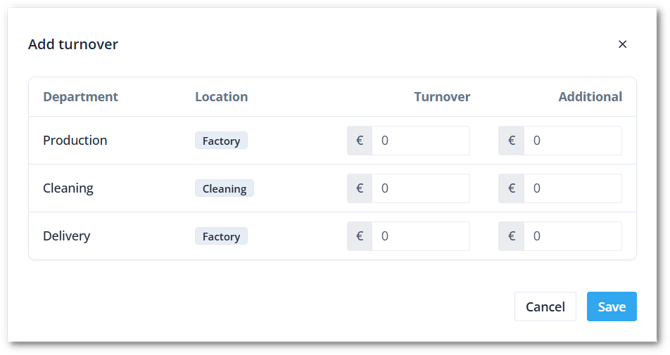
In Shiftbase, it is possible to automatically allocate your turnover to departments and teams. This enables you to get more detail into the income of certain departments and improve your Insights dashboard, ultimately improving your cost efficiency.
Contents
Turnover level
To manage turnover settings, navigate in Shiftbase to Settings > Insights > Turnover. To allocate your turnover, select which organisation level is registering your turnover. At the selected level, the turnover will be inserted and can be allocated under their lower level.
-
Location: Turnover is entered at the location level in Insights. The allocation can now be made on the department and their teams.
-
Department: Turnover is entered at the department level. The turnover can now be allocated over their teams.
-
Team: The turnover is entered in teams manually. No allocation is needed.

Turnover allocation
The turnover level you have selected will be regarded as 100%. On their lower level, the turnover can now be spread.
If you have selected Location as turnover level, the turnover of the departments underneath can be allocated and must add up to 100%. Teams underneath the department must add up to 100% to their department.
Example Location level
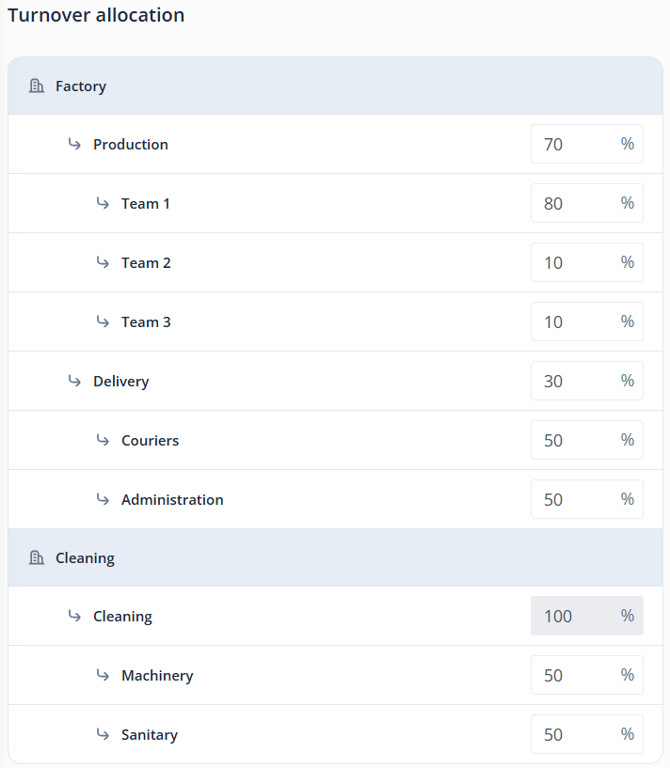
Via Insights, you insert the turnover on location level and will be automatically allocated to the departments and teams.
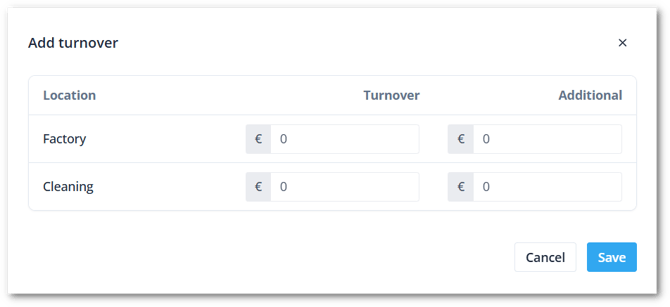
Example Department level
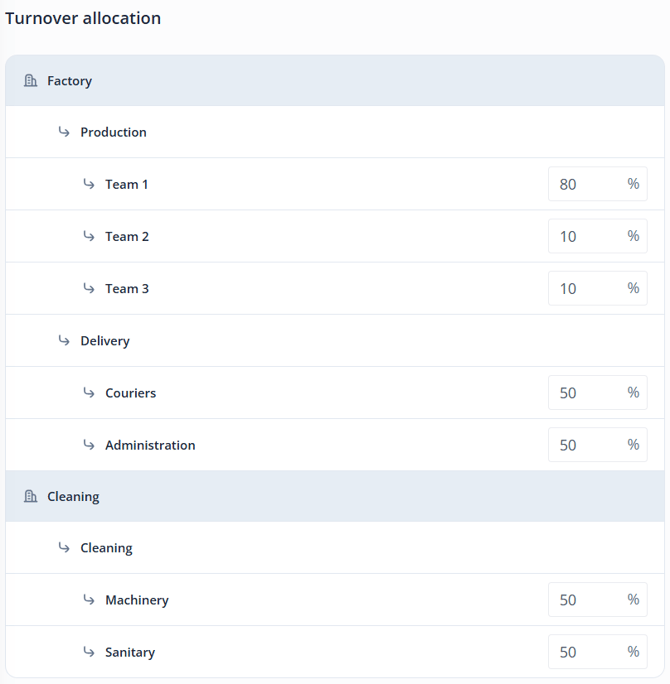
Via Insights, you insert the turnover on department level and will be automatically allocated to the teams.