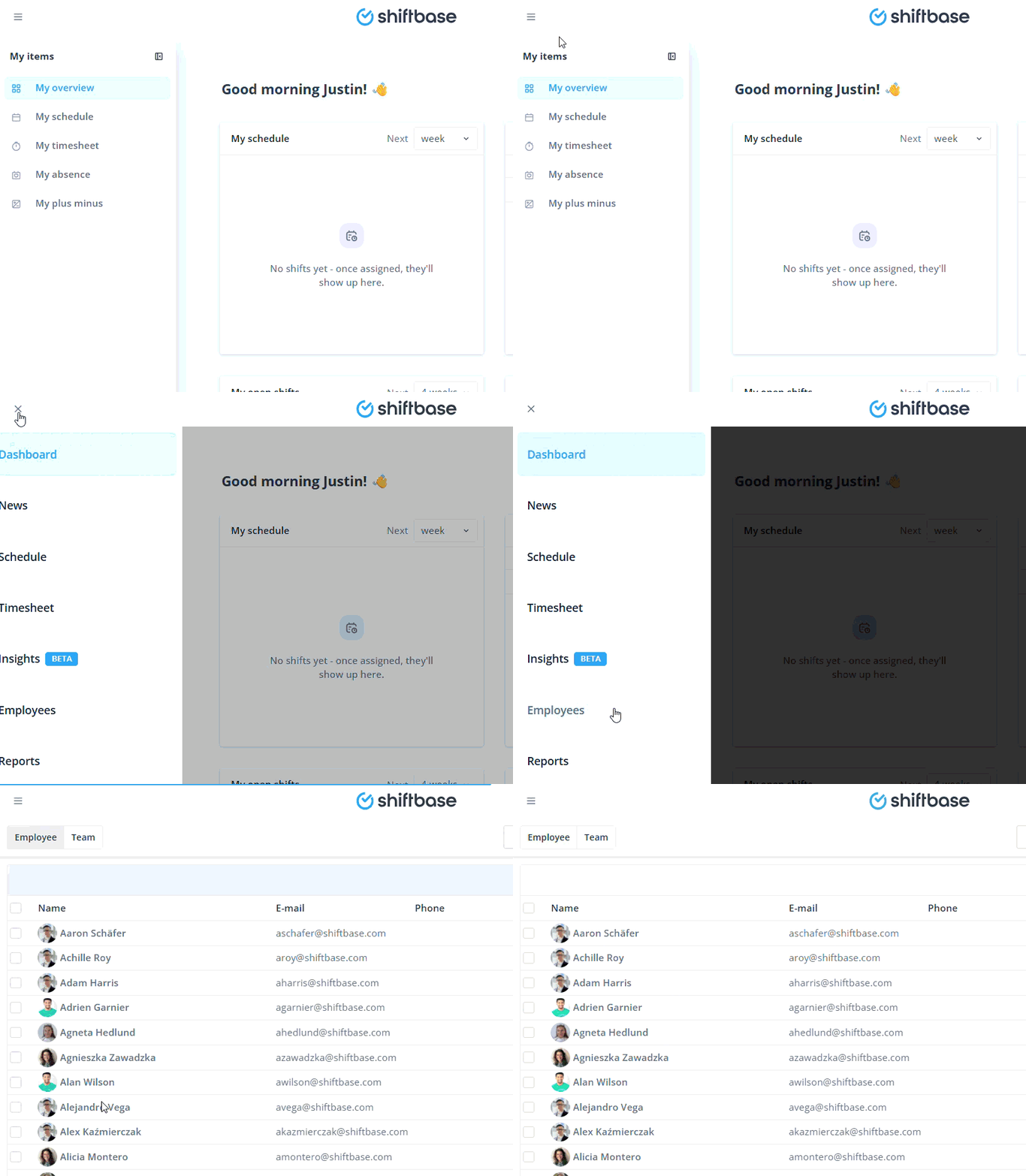
When it's time to add employees, you can navigate to the Employee tab at the top of the screen. If you're using a slim view on a tablet or phone, for example, the employee tab might be in the top left.
Contents
Adding employees
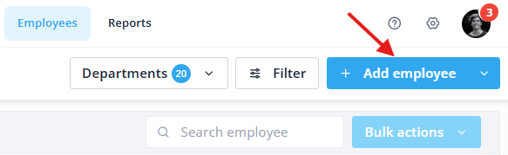
Employees can be added in two ways. This can be through importing employees or through manual entry as described below. To manually add a new employee, go to the Employees tab, and on the right side click the button: + Add Employee. You can always edit employees after adding them.
Here, you can enter all the basic data of the new employee. This employee will then receive an invitation at the entered Email. Do you want to enter additional data for this employee immediately? This can be done via the tabs on the left, as described further below.
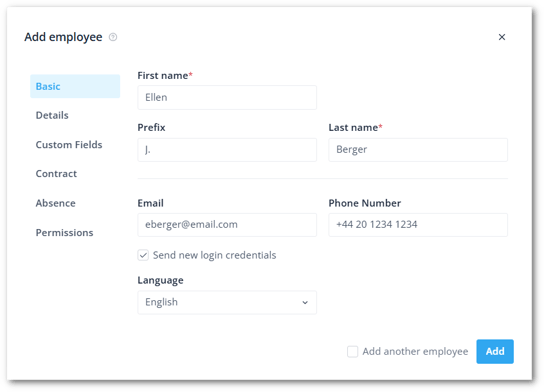
💡 Tip: You can already add an employee by giving the first name, last name and team.
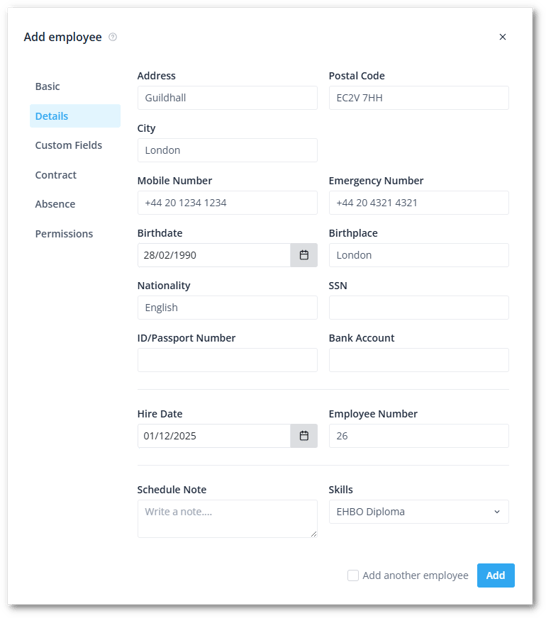
Details
Here you can enter additional employee information as shown in the image below. These fields are not required to save the employee. You can always edit these later.
Custom fields
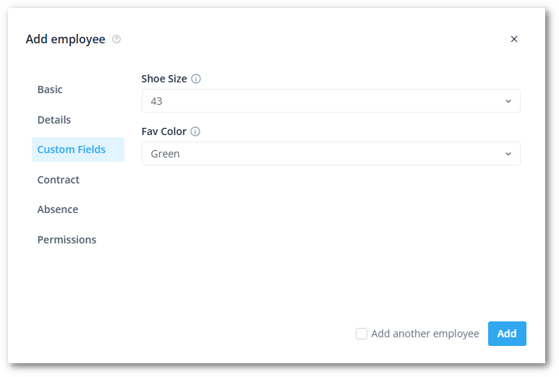
If you use custom fields for employees, they will be shown here. Custom fields allow you to add company-specific information that we do not offer by default. If you use this option, you can enter the data here for the employee.
Contract
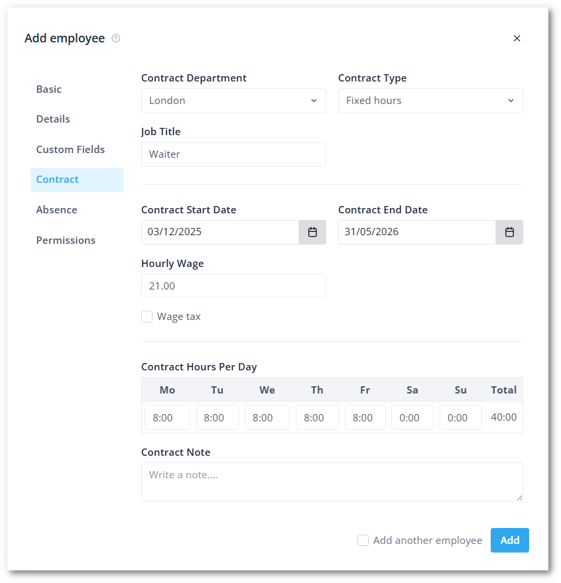
Here you can process the contract data of the employee. Such as contract department and contract type, but also the start and end date of the contract.
Absence
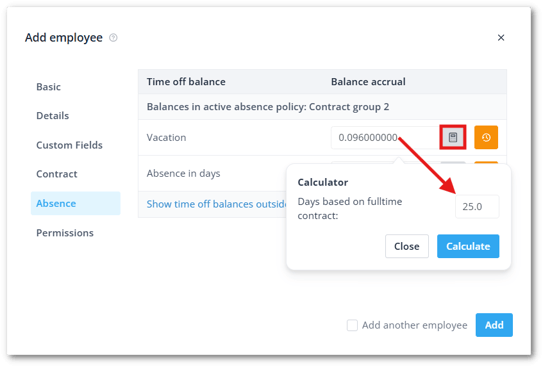
According to the contract type and it's absence policy, the time off balances will be shown here. Per employee, you can alter how the time off balances are calculated. It is recommended to administer the same accrual factor for all employees, unless a certain contract type has the rights to more holidays per year, based on a full-time contract.
Permissions
A new employee can be assigned to different departments. Press the + button to add a department. Next, you can select a team per department (optional) with the corresponding permissions that apply to the new employee.
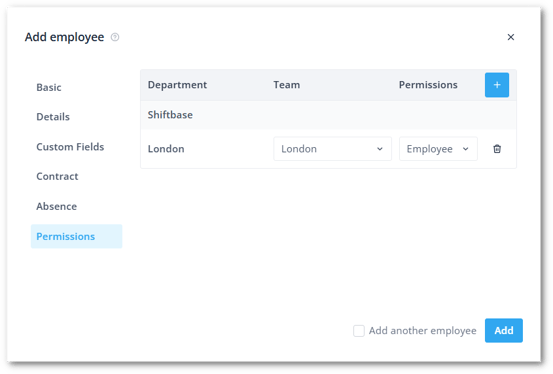
💡 Tip: If a planner or manager needs to manage to all teams within a department, you can leave the team selection blank. Important to note is that an employee needs to be in at least one team, so you want to add them to at least one team in another department.
Editing employees
To change the details of an employee, go to the Employees tab, where you will see the list of employees in the departments. In the upper right corner, you will find filters for the department and more employee filters where you can filter on status, contract types, permission groups and skills.

💡 Tip: If you are missing employees in the list, make sure you have the right filters selected. It might help to disable any filter for skills.
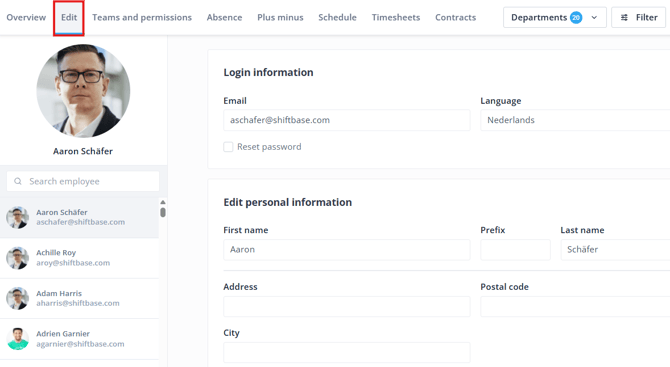
When you see the employee you wish to edit in the list, click on the employee's name and choose Edit on the top left of your page, you can edit the employee's information. Depending on what you wish to edit, we have an article for the two important employee menu to learn more.
Deactivate an employee
When an employee leaves the company because e.g. the employee's contract ended, you can make the employee inactive. When you click on the black dots behind the employee's name, you can click on Deactivate user next.
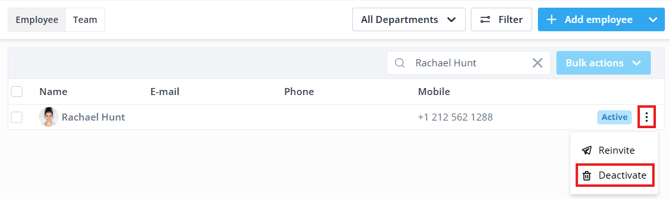
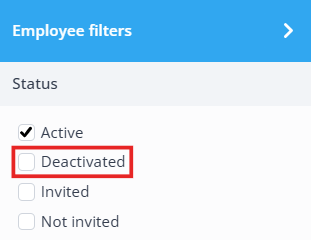
After confirming this action, the employee is made inactive and marked as a Deactivated employee. You can view all inactive employees by enabling the Filter on the top right. The data of the deactivated employee remains accessible. When someone returns to employment, you don’t need to create a new employee; you can restore their previous data.
When an employee is deactivated, it will use the day of deactivation as end date in their contract. Vice versa, by including an end date in the employee's contract, the employee is made inactive automatically when this date is reached.
📝 Note: When the contract's end date is reached, the employee is automatically deactivated. If you can’t find an employee, filter by Deactivated to locate them, then extend the contract or create a new one.
Employee anonymization
⚠️ Warning: All information associated with this employee will be anonymized. This cannot be undone.
When you want to remove an employee permanently, you can do so by anonymizing the employee. In the employees tab, the black dots can be found behind a deactivated employee.
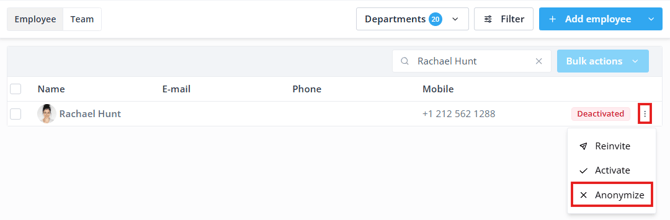
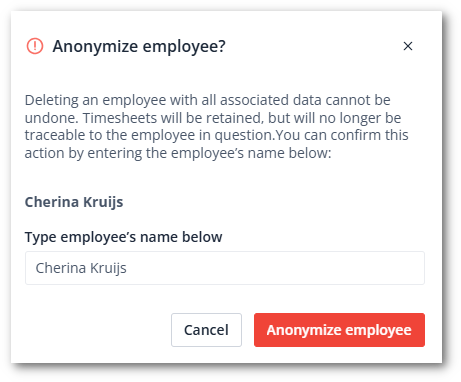
When you click on these dots, you can then click on Anonymize. Afterwards, you must enter the employee's name to confirm and click on the Anonymize employee button.