
The home page of Shiftbase is the Dashboard, aiming to give you a quick overview of all your personal items like schedules, absences and more. Let's find out how to use the dashboard.
Content
💡 Tip: When you are logged in and click on the Shiftbase logo, you will always be taken back to your personal dashboard.
My overview
In your overview, you can customize widgets to see what is important for you whenever you log into Shiftbase. Use the Customise dashboard button to enable the relevant widgets.
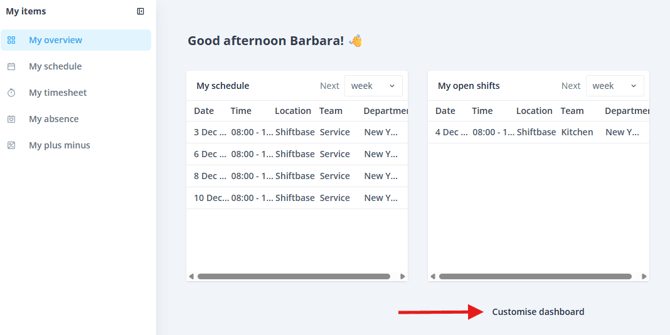
💡 Tip: If you would like to know how the graph widgets are calculated, check out the dashboard report for a detailed explanation.
My schedule
On this page, you will see the schedule for the selected month. From here, you can also add your availability on the top right by pressing + Add availability.
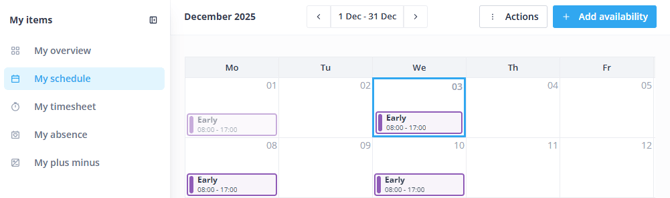
💡 Tip: It is possible to sync your schedule to your Google, Outlook or other personal agenda. Click on Actions > Calendar sync and find more information here.
My timesheet
In your timesheet, you can find your worked hours for the time period you have selected on the top right of the page. You will immediately see how many shifts you have worked in the selected period, how many hours they were and if you have the permissions, how much salary they represent.
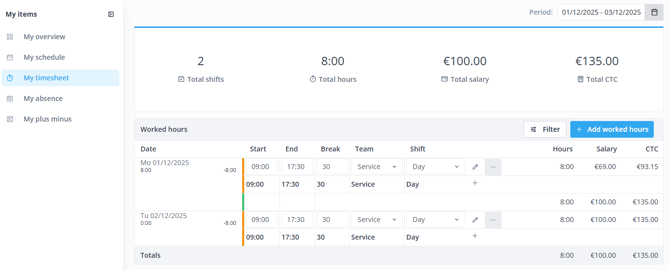
If you as an employee need to add your own hours worked, you can do this from the same overview. To do this, click on the button + Add worked hours on the right side of your screen. Read about adding, editing and changing your timesheet here.
💡 Tip: If an employee is unable to add their own worked hours, or if you want to disable this option, the correct permissions need to be enabled or disabled. The administrator can view and manage this in Settings > Security in Shiftbase.
My absence
From this page, you have insight into all matters related to your absence as an employee. To add a new absence, press + Add absence.
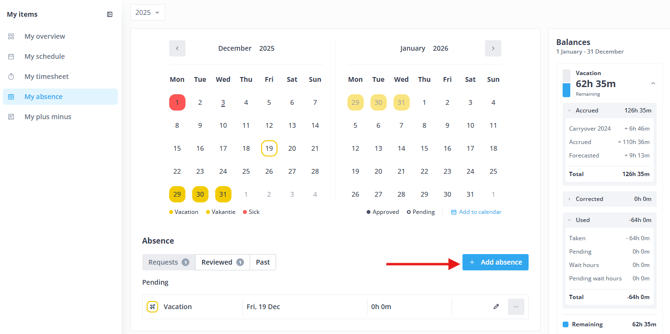
On the right side, you can find the balance of your time off. They're all calculated based on your contract.
- The absence balance today means how many hours of leave have been accrued to this day (meaning today).
- Taken represents the hours of leave taken in this year. Only approved absence requests are displayed as Taken.
- The starting balance is the remaining leave from last year that has been carried over into this year.
- The ending balance is the total leave entitlement for the entire year. If the employee started later than January 1st, the calculation is based on the start date of the contract until the end of the year.
My plus minus
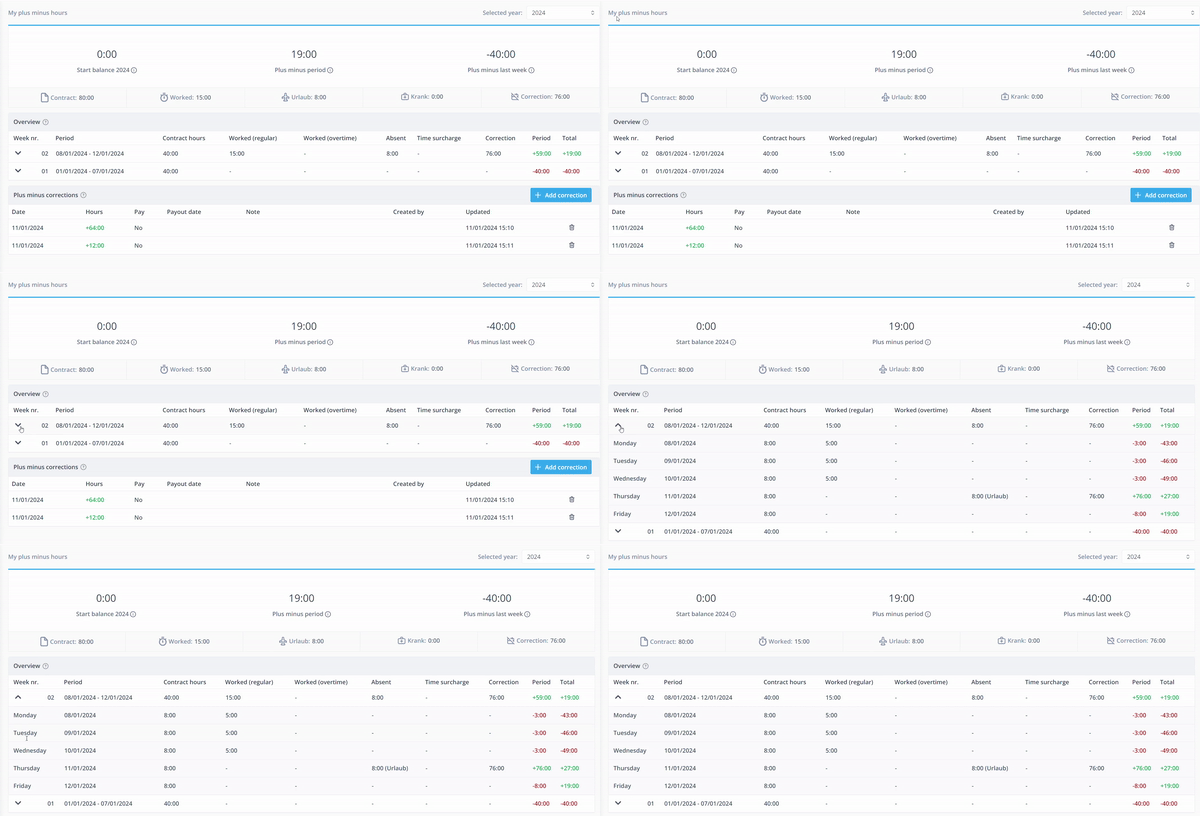
The plus minus overview gives you insight on your contract hours versus your worked hours in a weekly format. On the top of the page you can see the difference balances telling you about your Plus minus.

-
Start balance: Number of plus minus hours at the beginning of Year (week 1)
-
Plus minus period: Plus minus hours from week 1 up until today.
-
Plus minus hours last week: Plus minus hours up until last week.
Overview
In the overview you can see the Plus minus hours per week. To get a more detailed view, click on the arrow on the left side, then you can see the Plus minus hours per day.
Plus minus corrections
On the bottom of the sheet, you can see all the corrections made to your Plus minus balance. If you have questions about your balance, you can always contact your supervisor.