

In Shiftbase, you can manage absences of your employees. Employees can request a holiday, which needs to be approved by the planner or manager. We will discover the multiple ways of how to add an absence.
Contents
Approving & rejecting incoming requests
Adding absences
In Shiftbase, there are multiple places where you can add an absence for an employee.
-
On the employee profile
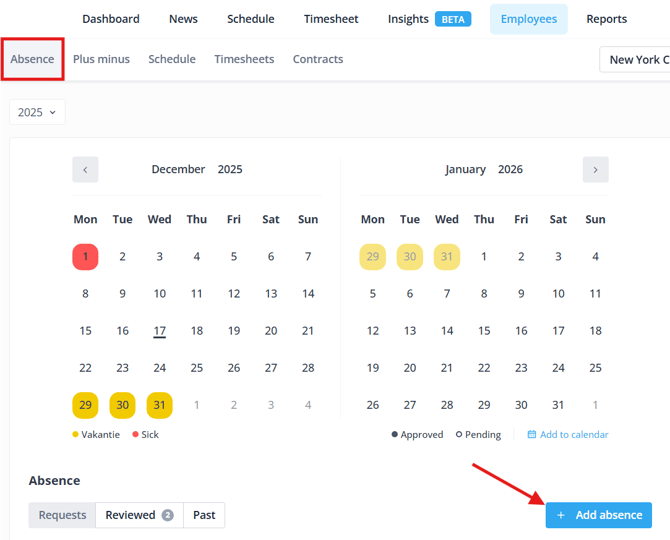
To add an absence for a specific employee, you can navigate to the Employee menu. Find the employee and click on their name. On the top, you will now find the tab for Absence.
-
In the schedule
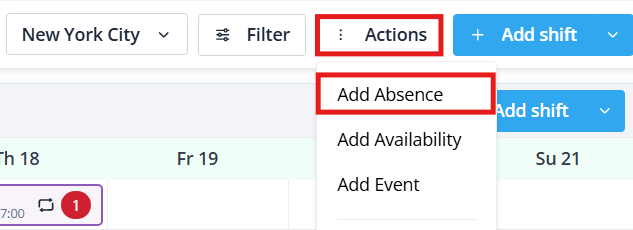
When you are in the Schedule, you can quickly add an absence for an employee by clicking on Actions > Add absence.
-
In the timesheet
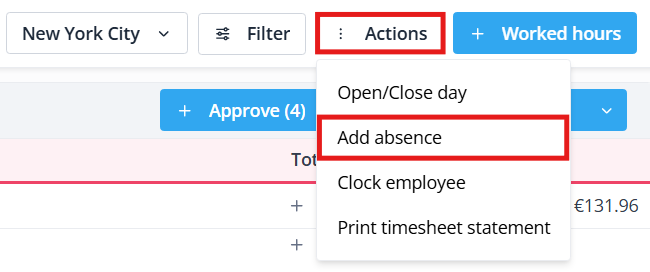
When you are in the timesheet, you can quickly add an absence for an employee by clicking on Actions > Add absence.
-
Bulk action
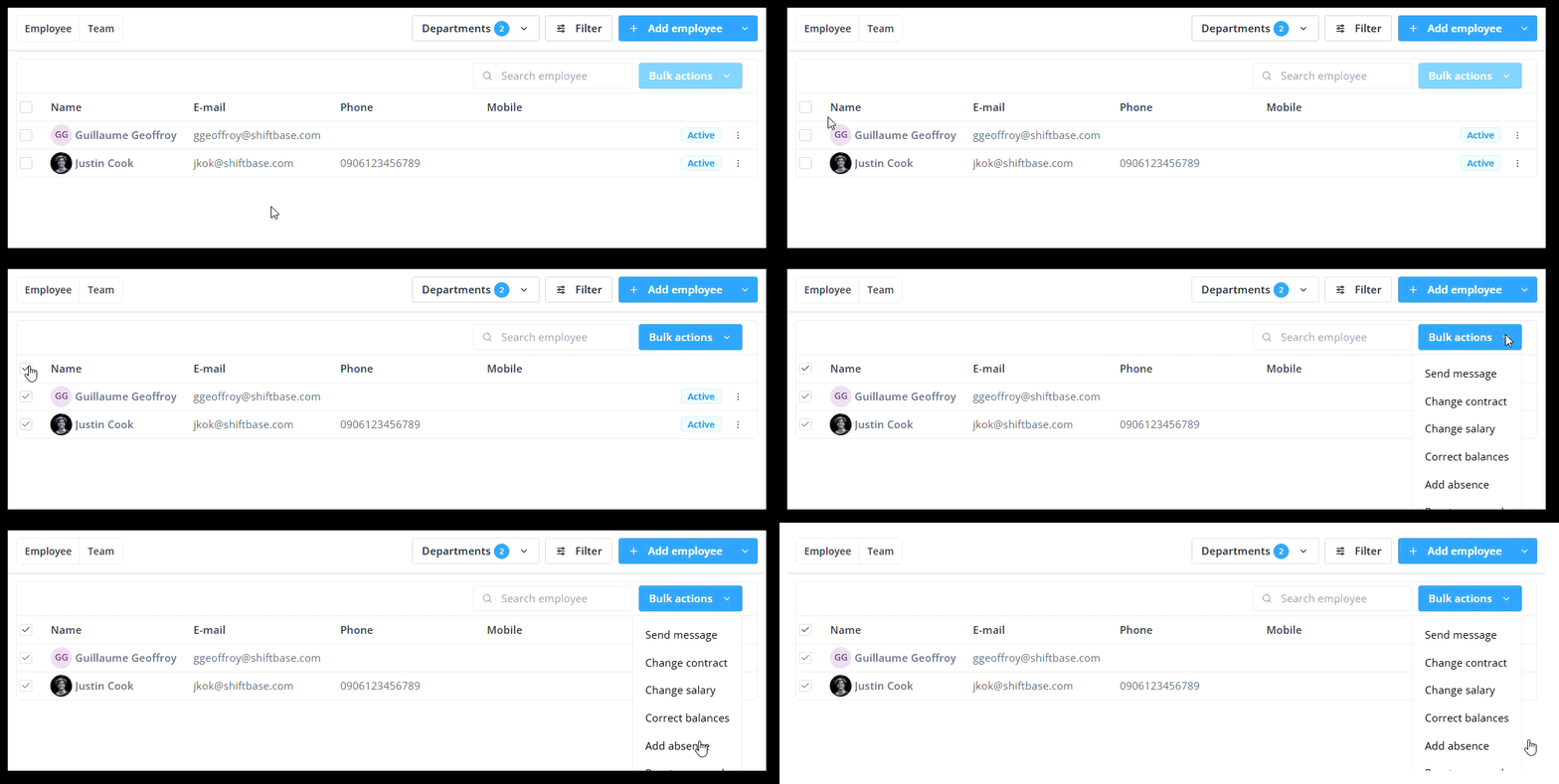
If you wish to add an absence to multiple employees at once, you can use the Bulk action. Navigate to the Employees menu and select the employees you wish to add an absence for by checking the box on the left side of their name. The bulk actions now become available.
Editing absences
In all ways mentioned above, you will see the following form to enter the details of the absence you wish to add.
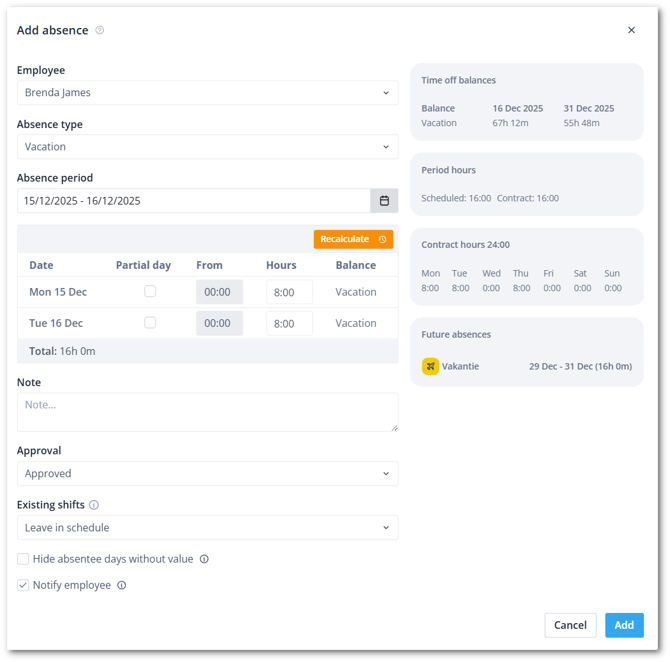
- Employee: Select for which employee you want to add an absence.
- Type: Select the absence type you wish to register.
- Unknown end date: This checkbox will show up if you've allowed this absence type to have open end dates. It is especially helpful when registering sick leave or parental leave.
- Absence Period: The desired period of absence and the number of hours or days. In the table, you will find an overview of all days within this period.
- Per day, the number of absent hours can be entered, by default this is already entered from the contract. If you want to deviate from this, enter the correct number of hours.
- For a part of the day, check Partial day. Now set from what time and number of hours manually from the time that the absence started.
If you have your absences in Days format enabled, the form will show these fields instead:
- Absence: This option lets you choose the different types of a day off
- Full day: Deducts a full day of the balance
- Half day from: Deducts half a day from the time you choose
- Half day until: Deducts half a day until the time you choose
- No absence: Will not deduct a day from the balance
- Note: Gives you the opportunity to add a description.
- Approval: Here, you can approve the request directly, provided you have the correct access rights for this.
- Intermediate shifts: Here you can choose what to do with the shifts that are cancelled due to the absence.
-
Remove from schedule: You remove the shifts that are scheduled in the period of absence.
-
Leave in schedule: This will leave the already scheduled shifts with the selected employee.
-
Move to open shift: Allows you to convert the already scheduled shifts to open shifts.
-
- Hide absentee days without hours: If you check this, absence days without absence hours will not be shown in the schedule and timesheet.
If you later wish to change any of the above, you can edit the absence by clicking on the pencil-icon.
Approving & rejecting incoming requests
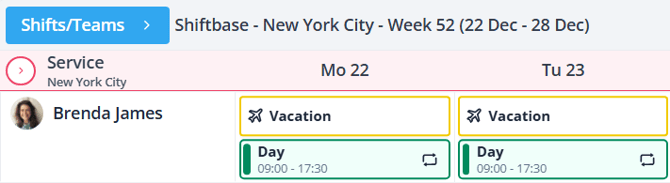
Whenever an employee requests an absence, it will be a Pending request, indicated with a hollow in the schedule and on the employee profile.
You will be notified in Shiftbase and by email if your permission group is selected in Settings > Schedule > Notifications > Time-off request. To view the request in Shiftbase, open your notifications and click on the request.
Once you have clicked on an absence request, you will see the request overview. Shiftbase automatically detects if there are
- Restrictions on the number of absences in that period.
- Sufficient balances, indicating if an absence would go into minus by approving this request.
- Overlapping or adjacent absences on -7 days from the absence start date and +7 days from the absence end date.
- In line with the contract hours. If the requested hours exceed the number of contract hours, the requested hours are invalid.
- Active contract(s) in the requested period.
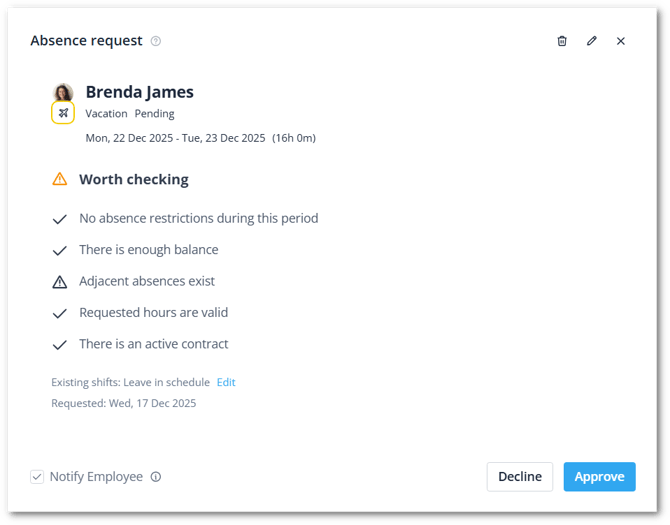
If all is fine, you can press Approve to validate the absence. If changes need to be made, you can click the pencil-icon on the top of the request overview.
Removing absences
Absence requests can be declined to inform the employee that their absence request is not approved. To completely remove the request, you can click on the trash-icon in the request overview.
Managing public holidays
Public holidays can be imported or manually added via the Settings > Employees > Public holidays. Once Public holidays are added, they will appear in the Schedule as an Agenda note.
The Absence policy dictates if employees are absent on a public holiday. Read more about Public holidays and how they are set up in this article.
💡Tip: If you still don’t see public holidays in the schedule after importing them, click in the schedule on Filter and make sure that Show agenda is enabled.