

Communications is a built-in messaging tool in Shiftbase that lets managers and employees send and receive messages directly within the platform. It replaces the need for external messaging apps by bringing team communication, including read receipts and message history, into one place.
Content
What is Communications?
Communications consists of three tabs:
- News: a broadcast channel for one-way announcements to employees
- Chat: a two-way messaging space organised into Channels based on your departments and teams.
- Files: a place where you can store company files that your employees can download and view at any time.
🗒️Note: This article focuses on the Chat tab. You can learn more about News here and about Files here.
How to access Chats
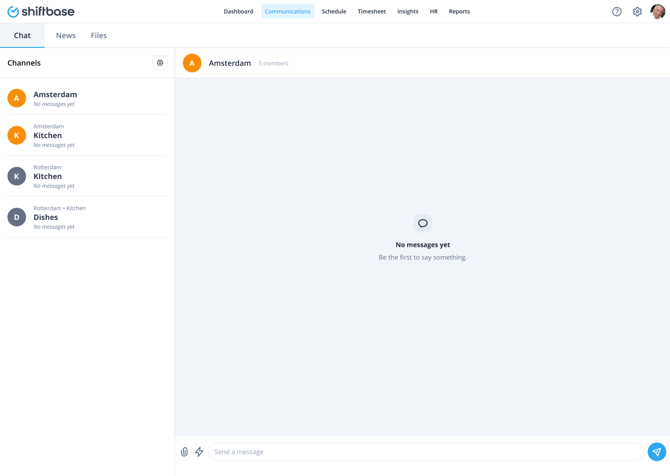
Web:
- Log in to Shiftbase.
- In the top navigation bar, click Communications.
- Select the Chat tab
- Click on Go to settings
- Enable Chat
If you switch back to Communications now, you'll see the Chat tab with the option to enable Channels for your team.
Mobile app:
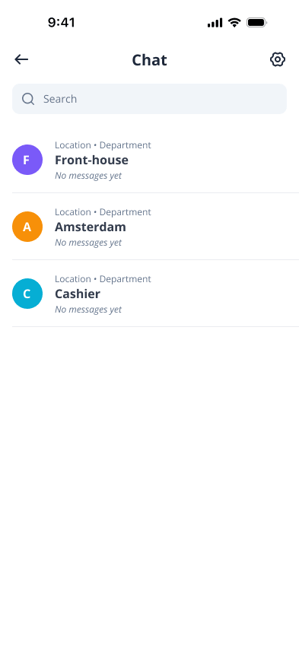
- Open the Shiftbase mobile app.
- Tap the Chat icon top right
- Select Channels you'd like to use
🚧 Caution: If you aren't part of the HR PRO add-on, you will not be able to access, view or create Chats or Channels.
Channels
What is a channel?
A channel is a dedicated space for messages between members of a department or team. Each channel corresponds to one of your existing departments or teams in Shiftbase, so no manual setup is required to get started.
Channels include:
- Read receipts: see who has read a message
- Push notifications: employees are notified of new messages on their device
- Message history: previous messages are stored and remain visible to members
How channels are created
Channels are created automatically based on your existing departments and teams in Shiftbase. When you open Chat for the first time, you will see an empty state until channels have been enabled.
Enabling and disabling a channel
Administrators can control which channels are active. To enable or disable a channel:
- Go to Communications>Chat>Settings gear
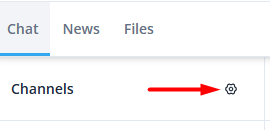
- Select the channel you want to manage.
- Toggle the channel on or off.
🗒️Note: Disabling a channel does not delete its message history. If you re-enable the channel later, all previous messages will still be available.
Channel appearance
Each channel displays an icon and colour to help members identify it quickly. Channel avatars use a colour and icon picker, not employee profile photos.
Permissions
Chat permissions follow the same team and department permissions already set up in Shiftbase. No separate permission configuration is needed for Communications.
| Role | Access |
|---|---|
| Administrator | Can enable and disable channels, send messages in all accessible channels |
| Manager | Can send and receive messages in channels for their departments and teams |
| Planner | Can send and receive messages in channels for their departments and teams |
| Employee | Can send and receive messages in channels they are a member of |
🗒️Note: Moderation features such as admin-only posting, muting individual members, and read-only channels are planned for a future release.
