Open in Shiftbase
With Shiftbase it is possible to easily send news messages to employees of departments or branches within your company. This way you can share announcements and/or files in no time.
Content
Adding news items
To add a news item go to the News tab. Here you click on the blue button + Add message in the top right corner.

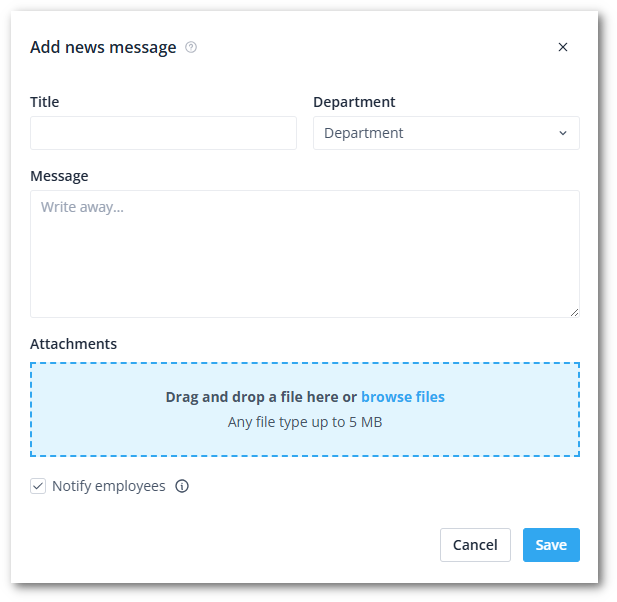
You will be taken to a new screen. Here you add the following information:
- Title: Title of the message
- Department: Which departments should receive the message
- Message: Here you can add the message you'd like to write to your employees
- Attachments: If you'd like, you can attach documents and files to the News item. Drag them into the field or select a file from your device (maximum of 5MB).
- Notify employees: If this checkbox is checked, the employees will receive a notification about the News item. If this box is unchecked, no message will be sent, but the employees within the selected department(s) will be able to see this message on the News tab.
Once you have filled in everything, you can post the message by clicking on the Save button.
The News item will then be shown for the employees of that department in their News tab.
Edit and delete news items
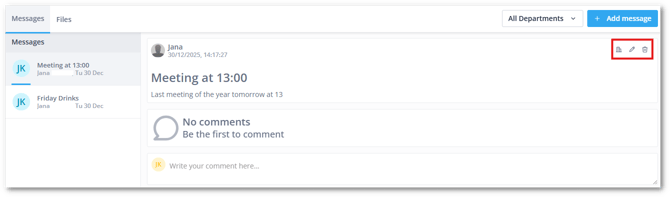
If you want to edit or delete a News item, selected the wished item on the left.
-
With the house icon, you can see which departments the message is intended for.
-
With the pencil icon, you can edit the message.
-
With the trash can icon, you can delete the message.
Commenting on News items
If you want to post a comment on a news item, click on the desired message on the left. Below the message you can write your reaction in the text box and click on the Write your comment here at the bottom.
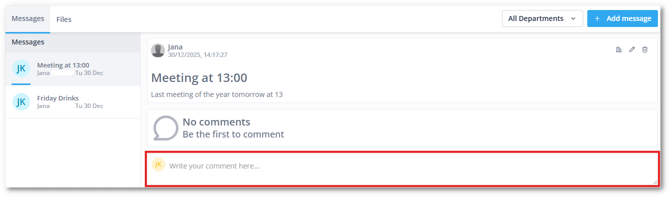
🗒️Note: Everybody can see your comment in your department. This is not a private chat.
Mobile App
On the mobile app you can find the news items under More > News or you can add them as a Widget for your Home display, to read there all the News.
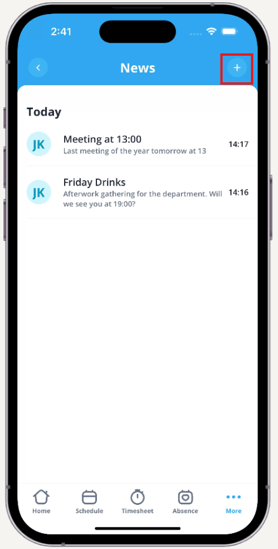
For adding a News item you will need to go More > News and select the small + in the upper right corner
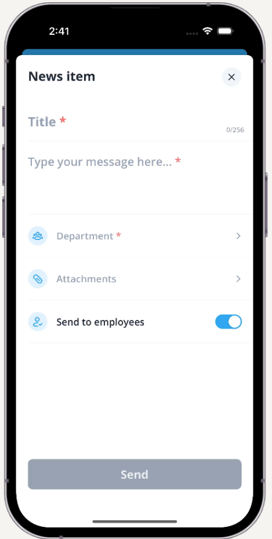
You will be taken to a new screen. Here you add the following information:
- Title: Title of the message
- Department: Which departments should receive the message
- Message: Here you can add the message you'd like to write to your employees
- Attachments: If you'd like, you can attach documents and files to the News item. Drag them into the field or select a file from your device (maximum of 5MB).
- Notify employees: If this checkbox is checked, the employees will receive a notification about the News item. If this box is unchecked, no message will be sent, but the employees within the selected department(s) will be able to see this message on the News tab.
For reading News items you can activate the Widget in the upper left corner.
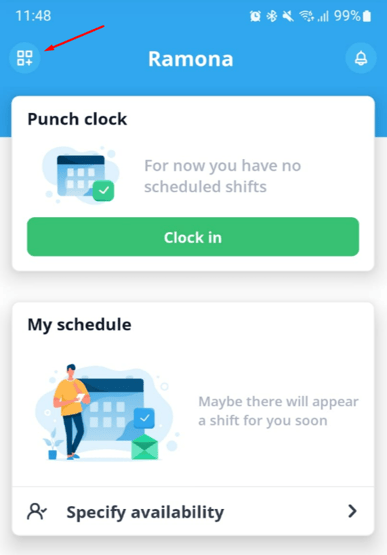
Now you can add the News widget to your Dashboard and Save. You will see the posted News messages on the front of your page now and can click on Read. You will be forwarded to the News item and can click on the suggested field to comment on it
Permissions
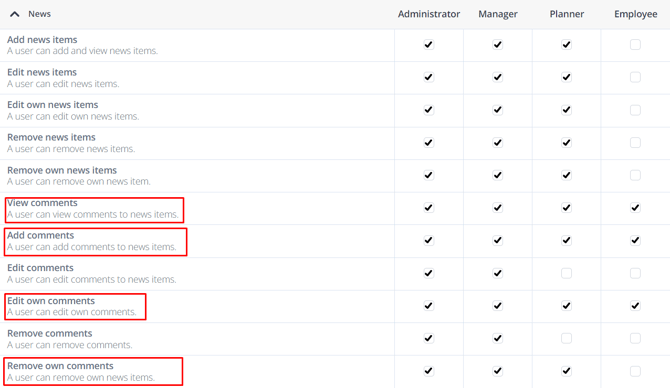
To ensure that employees can add and view News items, you need to give employees the appropriate permissions to do so.
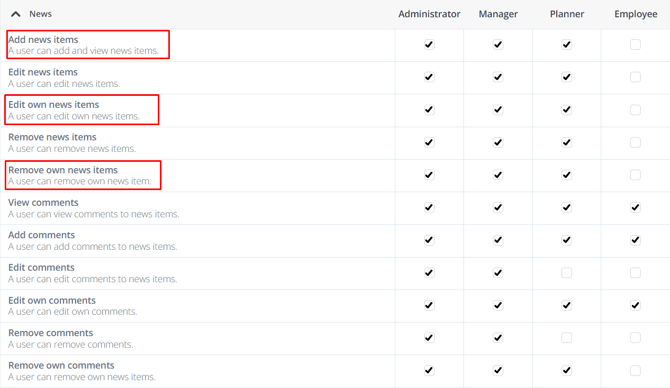
To ensure that employees can post and view comments, you need to give employees the appropriate permissions to do so.