

The Absence Calendar gives you a year overview of all absences for all employees in one place. It can be found at the Employees > Absences. You can filter the view, add new absences, and edit existing ones directly from this overview.
Overview
In the top left corner, you can narrow down what is shown.
- Department: Filter by one, more or all departments
- Filters: By clicking the filter button, you will have the following options
- Absence type: Show only the absence types you want to review, such as holiday, sick leave, or parental leave.
- Status: Filter by the status of absences like approved, pending or declined absences
- Date: Click on the arrows to move month or year. Click on Today to jump to the current day.
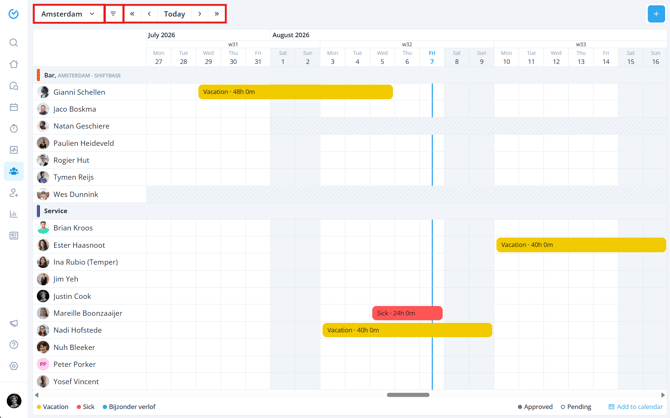
💡 Tip: Employees who don't have a contract in the period that you are viewing, are marked by a striped gray bar, indicating that they have not yet started working or have an expired contract.
Adding and editing an absence
You can add a new absence directly from the Absence Calendar.
In the top right corner, click the + icon or click direct in the calendar for the requested employee on the day, to open the absence form. This follows the same process as adding an absence elsewhere in Shiftbase.
To edit an existing absence, click on it in the calendar. The absence details will open, where you can make changes.
For a full overview of the editable fields, see Adding, editing and removing absences.
Legend and calendar sync
At the bottom of the Absence Calendar, a legend shows all absence types with their corresponding colours. The status of each absence is indicated as follows:
- Filled circle — the absence has been approved.
- Open circle — the absence is pending approval.
In the bottom right corner, you have the option to synchronize the absence calendar to other calendar of yours, outside of Shiftbase. Click on Add to calendar to start. For the full details on calendar synchronisation, follow these instructions.
