With Shiftbase Premium, you will have access to the settings for auto-scheduling to ensure the auto-scheduler plans according to your preferences.
To manage the auto-scheduling settings, navigate in Shiftbase to Settings > Schedule > Auto-scheduling. In this settings menu, you can set up how the auto-scheduler handles employees with a fixed contract, daily limits, availability rules and assigning shifts across the teams and departments.
Contents
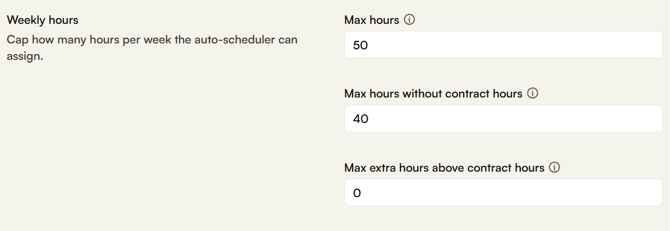
Weekly hours
With this setting, the auto-scheduler limits the amount of hours an employee can be assigned to work on a weekly basis.
- Max hours: No employee is ever assigned more than this many hours in a week in total. This rule is for all employees, regardless of contract type and contract hours.
- Max hours without contract hours: When the contract of an employee has 0 hours, the employee is never assigned more than this many hours per week.
- Max extra hours above contract hours: When scheduling an employee with hours in their contract, allow this many hours to be scheduled above of their weekly contract hours.
Daily limits
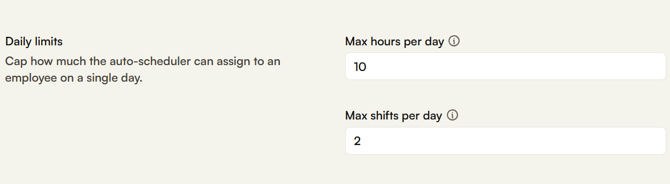
With this setting, the auto-scheduler limits the amount of hours and shifts an employee can be assigned to per day.
- Max hours per day: An employee can work no longer than this many hours per day.
- Max shifts per day: How many shifts an employee is allowed to work per day.
Scheduling rules
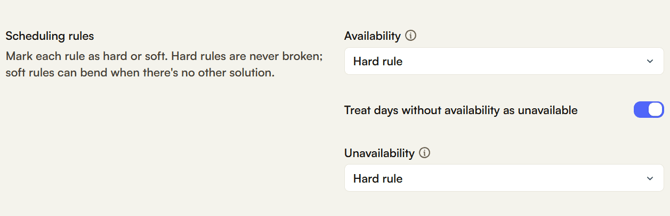
With this setting, the auto-scheduler is instructed how strictly the Availability is adhered to.
- Availability: When employees indicate the availability status "available all day" or "available from".
- Hard rule: Only schedule the employee when they are available.
- Soft rule: Prefer to schedule the employee on the available times when possible but can be scheduled outside of these times on a given day.
- Treat days without availability as unavailable: When disabled, a blank day counts as available. When enabled, a blank day is treated as unavailable and the employee won’t be scheduled that day.
- Unavailability: When employees indicate the availability status "unavailable all day" or "unavailable from".
- Hard rule: Never schedule an employee when unavailable
- Soft rule: Prefer to not schedule when the employee is unavailable but can also scheduled
Teams & departments
With this setting, the auto-scheduler allows whether employees are scheduled only in their own team or are allowed to also be scheduled in other teams and departments.
- Only own team: Only schedule to the default team of the employee.
- Prefer own team: Prefer to schedule in the default team of the employee, but can also schedule in other teams within the department
- Any team in department: Plan employees freely in teams within a department.

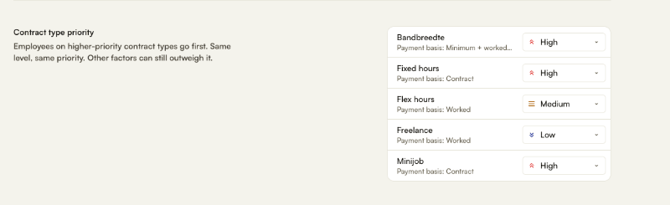
Contract type priority
With this setting, indicate to the auto-scheduler which contract types have priority on shifts. Choose between High, Medium and Low. Employees with a contracttype which is High will fill most required shifts opposed to the Low priority where the auto-scheduler will look to fill the gaps.