If you use the Lightspeed K series point of sale system, you can choose to make an integration with Shiftbase. With this integration, you can import the turnover with or without VAT registered in the POS.
The turnover registered in Lightspeed K will by synchronized every 15 minutes to Shiftbase and will be visible in Insights.
Contents
Installing the Lightspeed K integration
Installing the Lightspeed K integration
The installation of the integration is done through the App center. An App center Plus add-on is required to make this integration.
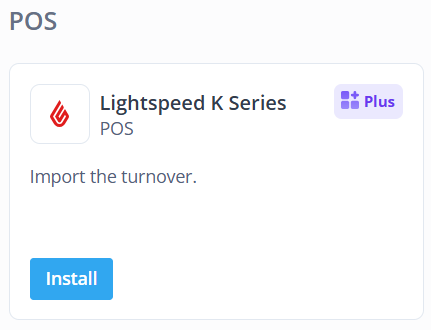
Navigate in Shiftbase to Settings > App center > Lightspeed K. To install the integration, find the tile for Lightspeed K Series and click on Install.
If you already have an integration and wish to add another one, click on the logo and select + Add Lightspeed K Series integration.
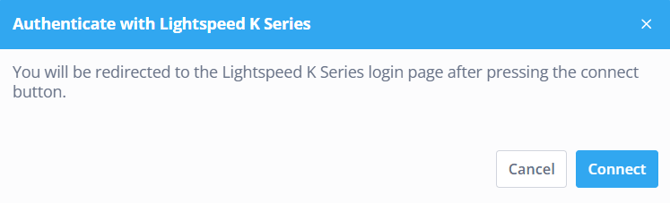
After you click on Install, you need to authenticate. The following screen will display where you can click on Connect. You will be redirected to the login screen of Lightspeed.
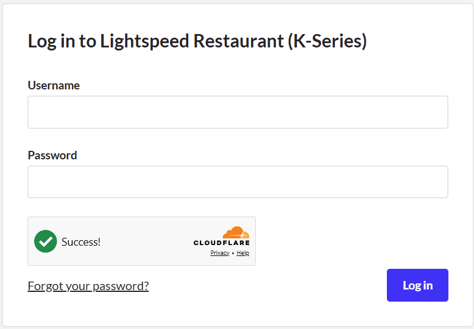
Use the login credentials normally used to log in to the Lightspeed environment.
Once the authentication is successful, you will be redirected to Shiftbase to set up the integration.
Configuration
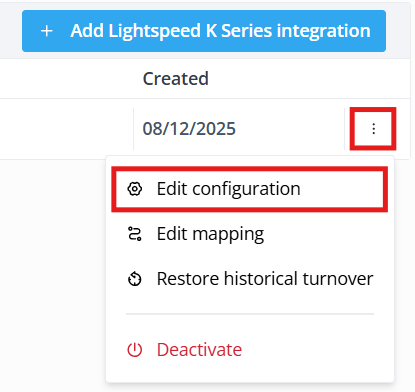
To configure the settings of the integration, click on Lightspeed K in the App center, click the three dots on the right and select Edit configuration.
- Company: Shows the account ID of the connected Lightspeed account.
- Name: The name as shown in the application overview.
- Include VAT: Select if you wish to import turnover with or without VAT.
- Notify turnover import email address: The email address to which notifications and errors are sent to about this integration.
- Reconnect with Lightspeed K Series: Restart the authentication process if the connection has been lost.
Mapping
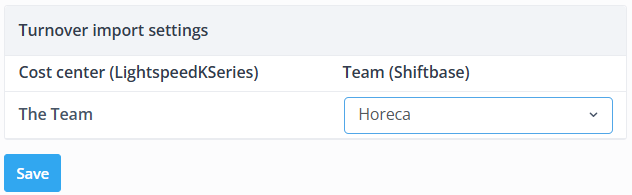
In the mapping menu, the turnover import settings are managed. Here, you can select to which team in Shiftbase the turnover should be imported to.
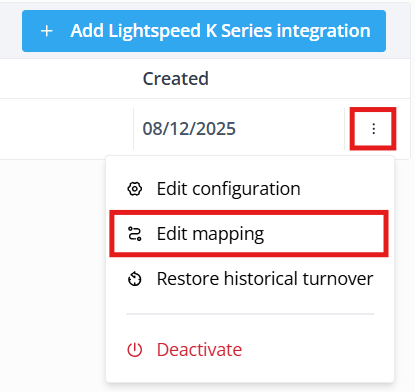
To access the mapping menu, click on Lightspeed K Series in the App center, click on the three dots to the right and select Edit mapping.
On the left side, you will find the Cost centers as known in Lightspeed. On the right, you will find the Teams as known in Shiftbase. Click on the team in Shiftbase to edit. Set this field to Do not import if you do not wish to import any turnover from this cost center.
📝 Note: The turnover is imported every 15 minutes. Any additional corrections made for today and the last two days, will be made once per day. To correct any previous entries, refer to the chapter below.
Restore historical turnover
It is possible to retrieve turnover from Lightspeed K Series which is registered further in the past. This allows you to import what is already present in the POS and start using Insights straight away.
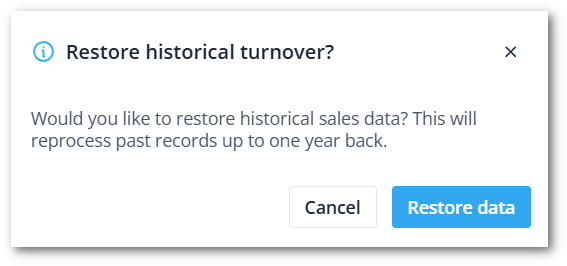
To access the mapping menu, click on Lightspeed K Series in the App center, click on the three dots to the right and select Restore historic turnover.
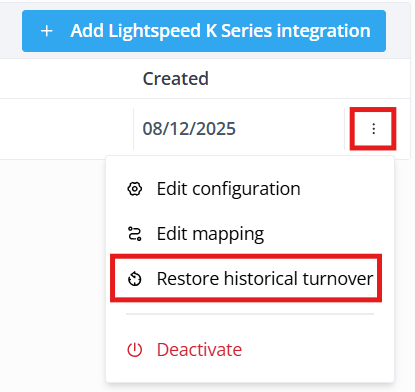
This import will restore up to one year back. After selecting Restore data, the request will start processing. This may take a while.