Shiftbase offers employees and managers the possibility of adding files to their personal profile. For example, it is possible to store a contract, project plans, ID card, driving licence or passport. Also, sick certificates can be uploaded here and be looked into by planners and managers.
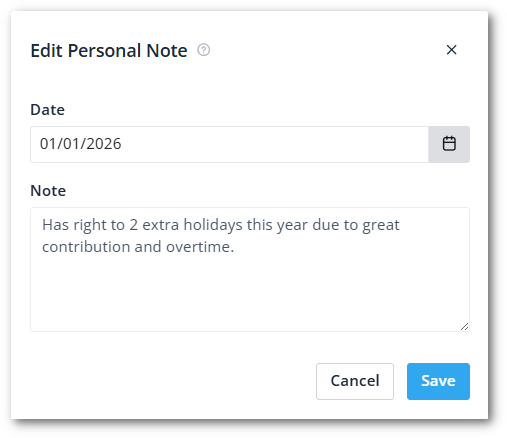
Shiftbase also allows you to add notes to your employees to keep track of certain information, that only you as a manager are supposed to see and edit.
Contents
Adding and deleting files
To add files, go to the Employees tab. Here, you click on the name of the employee whose files you want to manage. On the Overview tab, you will see the Personal files section on the very bottom of the page.
Click on Add file if you wish to upload a new file. If you wish to download a file, click the cloud icon. If you wish to delete a file, simply press the trash can icon and confirm your action.
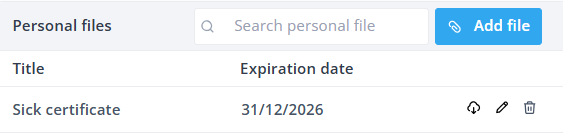
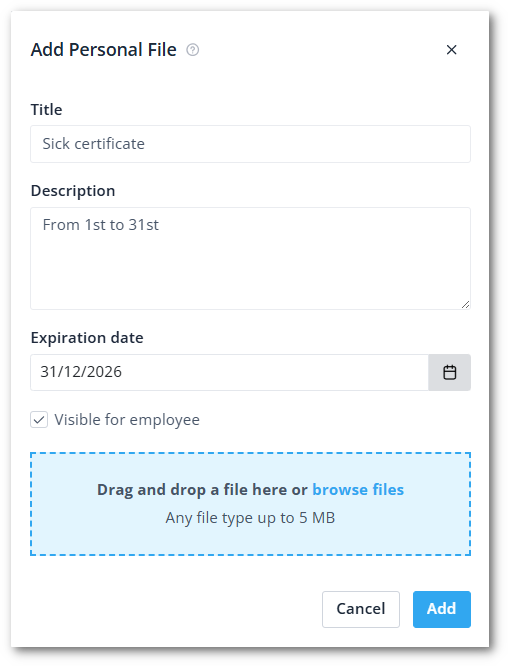
When you have clicked on Add file, you have the following options
- Title: Give a title to the item to recognize what it's about
- Description: Enter a description of the file.
- Expiration date: Set a date for the expiration of the file. On this date, the file will be permanently deleted.
- Visible for employee: Enable the employee to see this item.
- Upload file: Upload a file from your device. You can drag and drop the file if you wish. The file may not exceed 5 MB.
💡 Tip: The reminder notification settings for expiring files are managed in Settings > Employees > Notifications. Read more about it here.
Adding and deleting notes
To add notes, navigate to the Employees tab. Here, you click on the name of an employee whose notes you want to manage. On the Overview tab on the top left, you will see the Personal notes section at the bottom of the page.
Click on Add note to make a new note. If you wish to delete a note, simply press the trash can icon and confirm your action.

When you have clicked on Add note, you have the following options
- Date: Enter a date for the note.
- Note: Enter the note itself.