In your schedule, you can add budgets and the expected turnover forecast. This allows you to see at a glance if the labor costs of the current schedule are exceeding your budget and what the percentage of labor costs is in relation to the expected turnover.
Contents
Adding budgets
To make the budget visible in the schedule, go to the Schedule tab and click on the Filters button in the upper right corner. In this list, Show totals and Show budget must be checked.
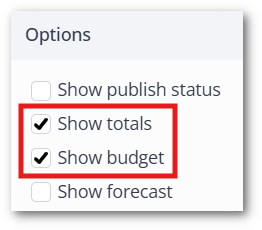
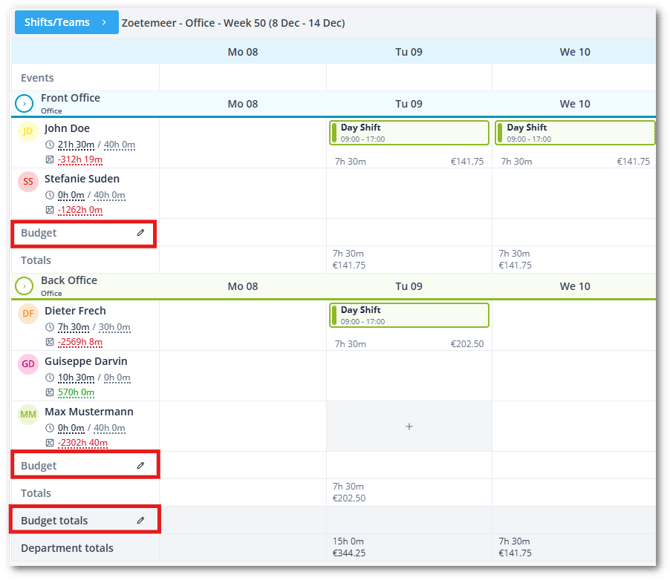
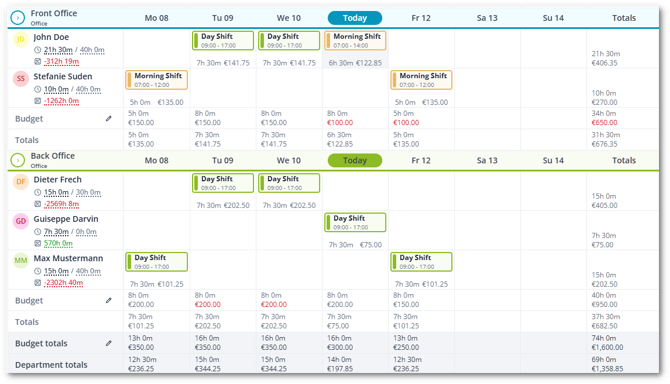
When those are active you will see a budget bar and totals bar appear in the schedule. By clicking on the pencil on the left side under a team behind Budget you can enter the data.
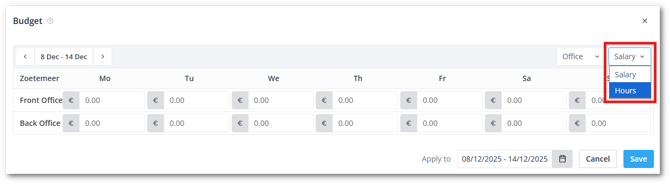
Budgets can be set per team and are divided into two types:
-
Budget for salary: This is where the salary costs of a team per day are compared to the set salary budget.
-
Budget for hours: Here the daily hours of a team are compared to the set budget for the worked hours.
Once you have saved the budget, you will see at the bottom of the schedule per team and department the set budget and the scheduled total costs per day.
On the right side of the schedule you will find a complete overview of the total costs in salary and hours per employee. If these costs are above the budget, it will be shown in red.
Adding a forecast
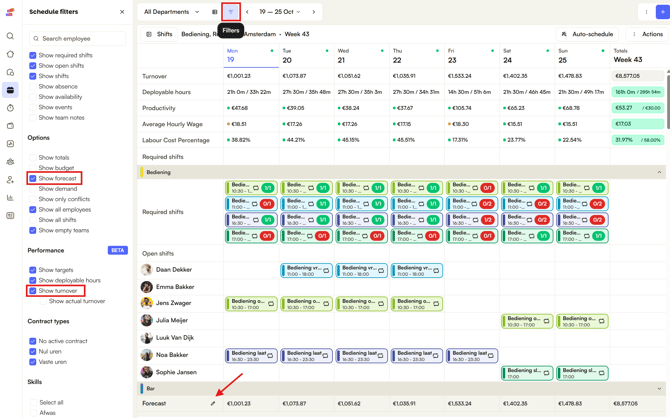
To make the expected forecast visible in the schedule, go to the Schedule tab and click on the Filters button in the upper left corner.
In this list, Show forecast can be checked to view the forecast on the bottom of the schedule. Under the filters for Performance, the filter Show turnover can be checked to view the forecasted turnover on the top of the schedule.
When this is enabled, you will see a Forecast bar appear on the bottom of the schedule. By clicking on the pencil at the bottom left of the Schedule you can enter the Forecast. Or simply click on the top right on the + icon > Turnover.
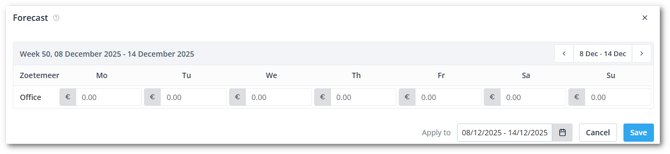
Now you can enter the expected revenue per day for the whole department for the selected period.
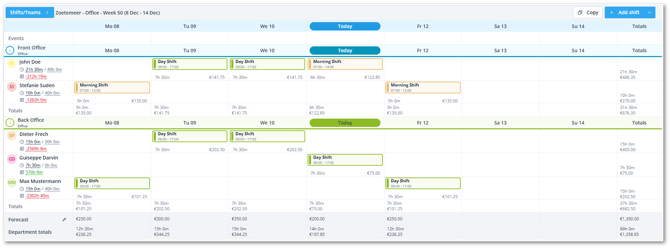
Once you have saved the expected forecast you will see it at the bottom of the schedule. On the right side of the schedule you will find a complete overview of the total costs in salary and hours per employee.
💡 Tip: If you wish to save time by automating the forecast, have a look at our automated AI forecast here.
Permissions
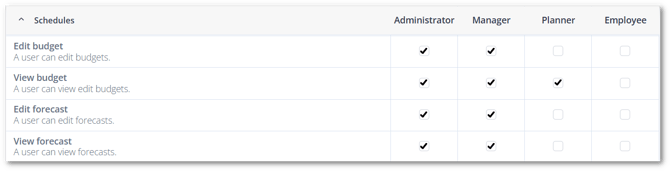
Through permissions, you can determine who is allowed to see and edit the budget and forecast within the schedule: