

The schedule in Shiftbase gives you options to make notes for departments and teams. In this article, we will cover how to use the events and teamnotes and their corresponding permissions.
Contents
Events
You can add events to the schedule in Shiftbase. This can be for example useful for meetings, special occasions or team events.
To make the events visible in the Schedule go to the Schedule Tab and click on the Filters button at the top right. In this list, Show events should be checked. When this is turned on you will see the events bar appear above the work schedule.
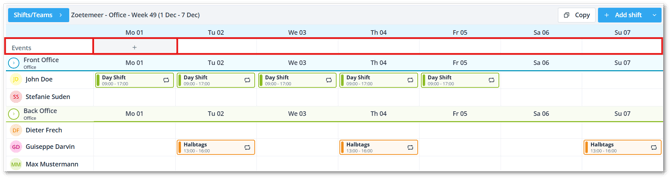
If you want to add an item to the events, hover your mouse over the box on the desired date. Once the Plus icon appears, click on it. Then you can fill in the information for the event:
-
Name: Name of the event.
-
Start time & End time: Start and end time of the event.
-
Team: Select which team the event is relevant for. Please note, every team under the selected department will see the event.
-
Description: Description of the event.
- Repeat this event: By ticking this box you can have an agenda item repeated just like a shift. Several options will then appear.
- Repeat every: Here you indicate whether this should be repeated weekly or every few weeks.
- Ends On: Here you can indicate the date until which the repetition should take place.
- Repeat on: Here you indicate on which days of the week this agenda item is to be repeated.
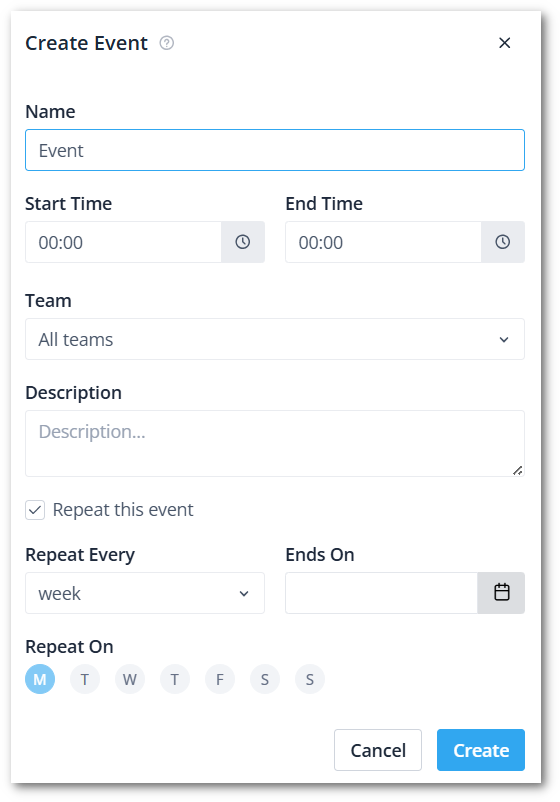
❗Caution: Repeating Events is only possible in Premium.
Click Save to add the event. Employees within the selected teams can immediately find the event in their schedule. The events are also visible in the Mobile app under Schedule > Team.
Team notes
You can add team notes to the schedule in Shiftbase. These are shared notes that contain relevant information per team and per day.
To make team notes visible in the schedule, go to the Schedule tab and click on the Filters button in the top right corner. In this list, Show team notes should be checked.
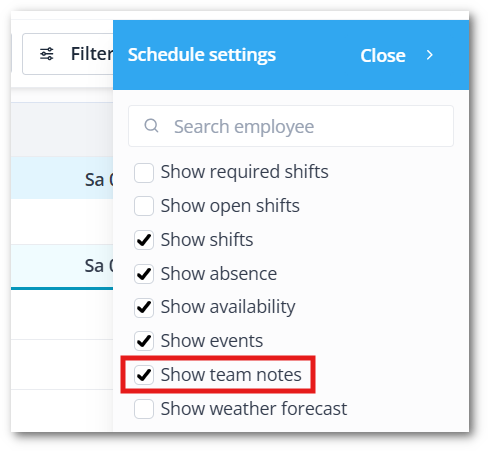
When this is turned on, you will see the team notes bar appear in the schedule.
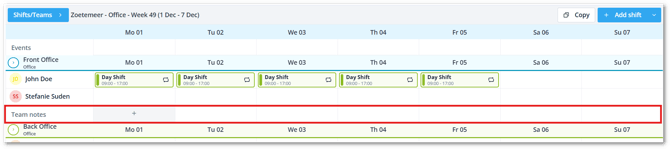
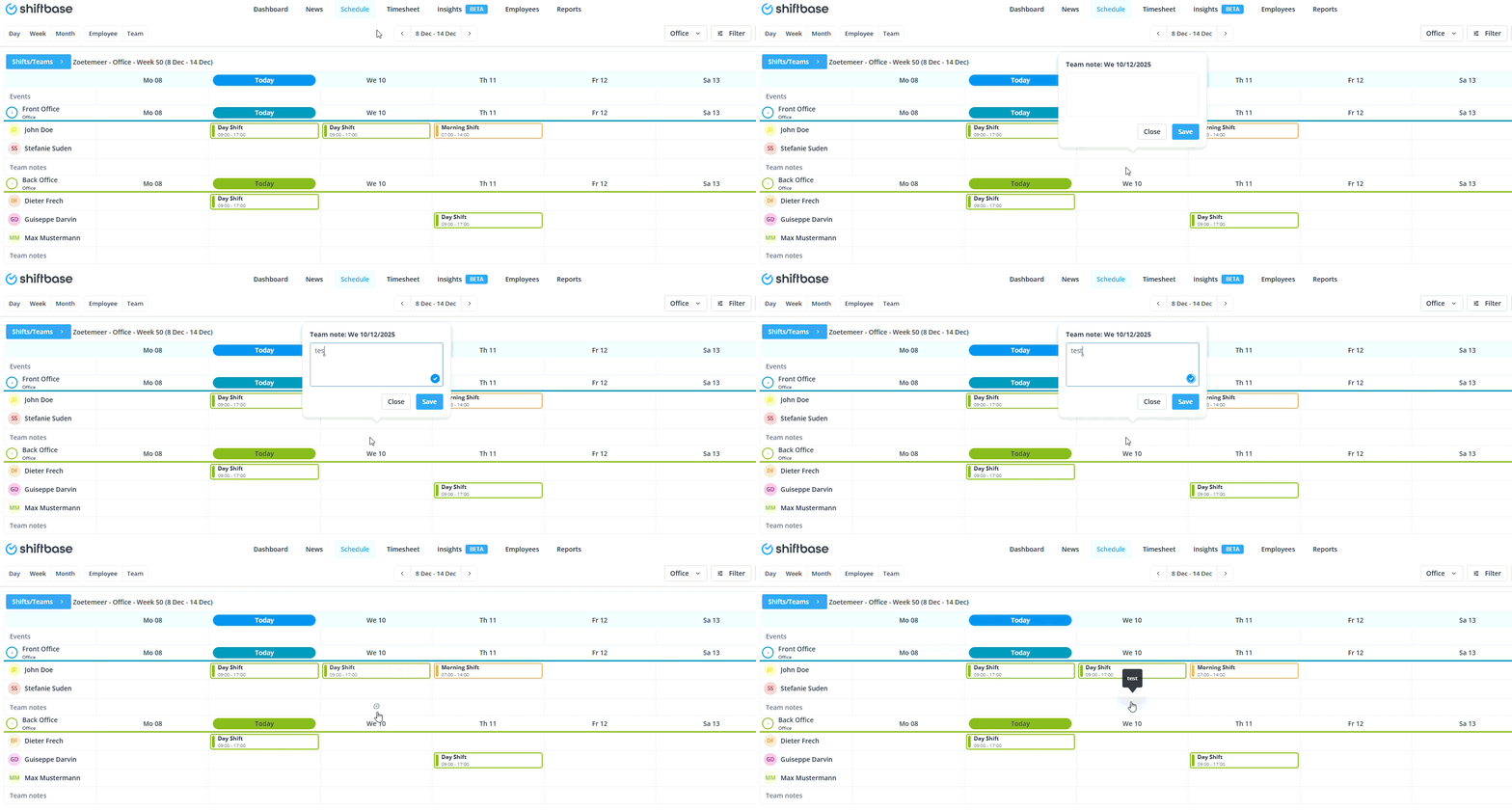
If you want to add a team note, hover your mouse over the desired box. Once the Plus icon appears click on it. This will open a text field where you can fill in the note. After this you can save the note by clicking the Save button.
Permissions
The events will always be visible for the employees, as long as the filters are set correctly. For the team notes, you can decide through the permissions who can view and add them.
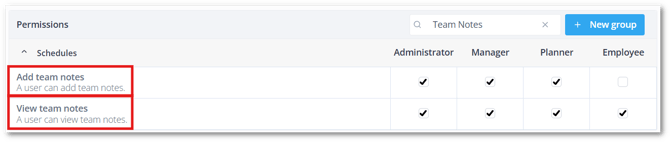
⚠️ Warning: The permission to view team notes is on by default for employees.
