
Visma Nmbrs is stopping the old way of connecting with a username and token. That is why you migrate your Nmbrs integration to the new connection, where you log in with OAuth. You need to do this before March 1, 2027. Until that date, your current integration keeps working as usual.
Why do I need to migrate my Nmbrs integration?
Visma Nmbrs switches off the old connection on March 1, 2027. An integration that has not been migrated can no longer be used after that. By migrating, you keep your integration working.
Until when can I migrate?
You can migrate until March 1, 2027. You can keep using your current integration without problems until that date.
How do I know my integration needs to be migrated?
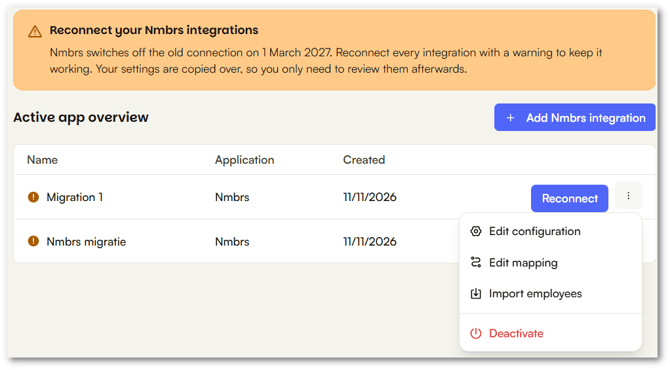
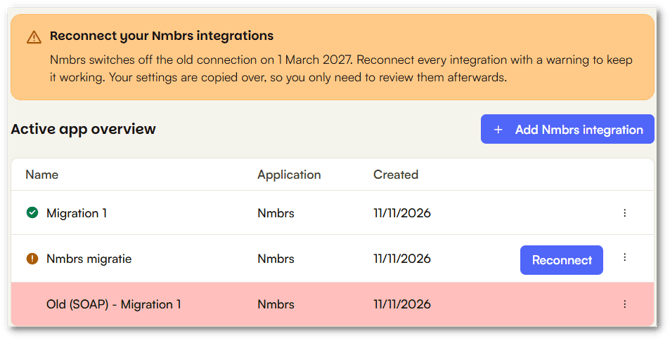
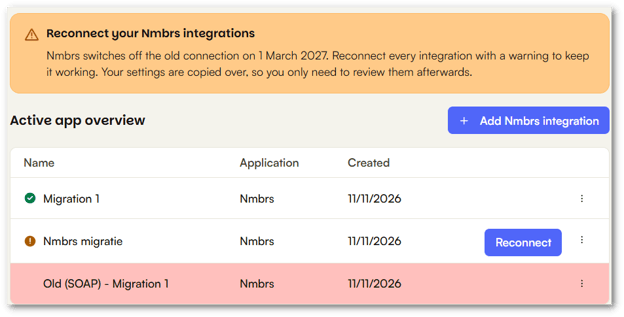
Go to Settings > App center > Nmbrs. At the top you see the message Reconnect your Nmbrs integrations. Every integration that needs to be migrated has a warning icon and a Reconnect button.
How do I migrate my integration?
First create a client login in Nmbrs. You can read how under "Which Nmbrs user do I need to log in with?". Then:
- Go to Settings > App center > Nmbrs.
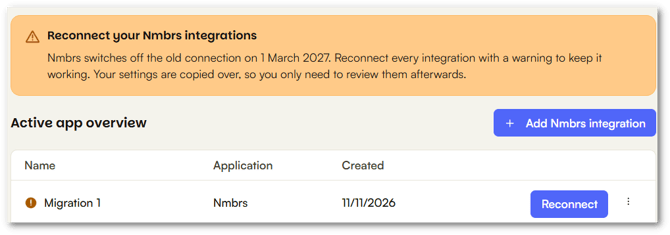
- Click Reconnect next to the integration. You can also open the menu (⋮), select Edit configuration, and click Reconnect with Nmbrs.
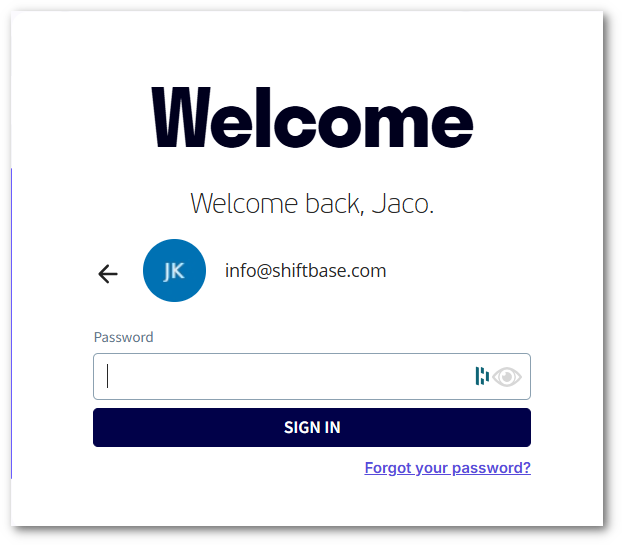
- Log in to Nmbrs.
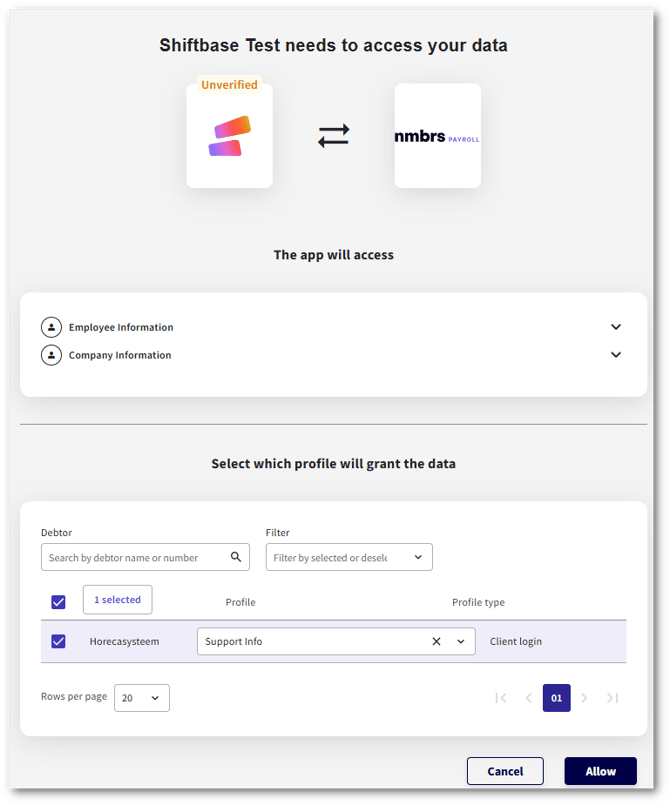
- Select the debtor and, under Profile, select your client login.
- Click Allow.
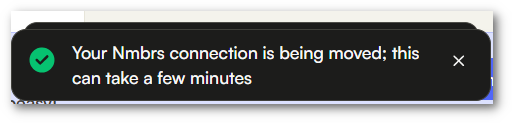
- You see the message "Your Nmbrs connection is being moved; this can take a few minutes". Wait until the integration has a green check mark.
- Check your settings via the menu (⋮) under Edit configuration and Edit mapping.
Can I still reconnect with my username and token?
Yes, until March 1, 2027 you can still reconnect an existing integration with your username and token. Open the menu (⋮), select Edit configuration, enter your Username and Token, and click Connect. We recommend connecting with OAuth through Reconnect with Nmbrs, so your integration keeps working after that date.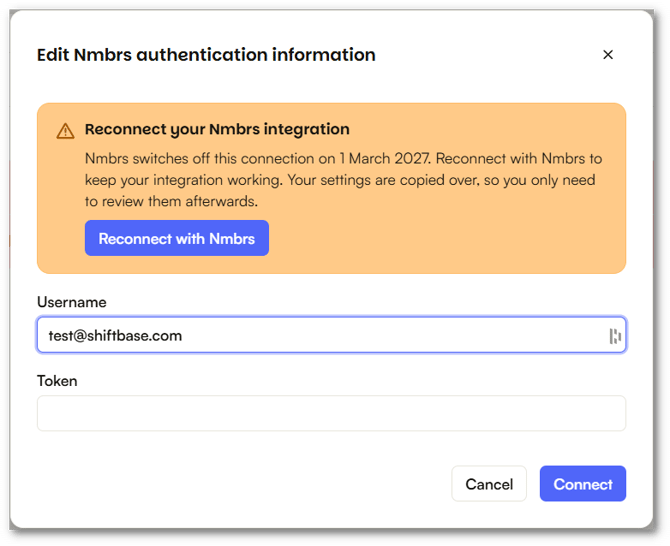
Which Nmbrs user do I need to log in with?
You log in with your own Nmbrs login. Create a client login in Nmbrs for this. This client login needs the same rights as the API template you currently use for the integration. In step 4, you select this client login as the profile.
What happens to my settings and history?
Shiftbase makes a copy of your old integration for the new version. Your settings are copied over, so you only need to review them afterwards. Your history is not lost: the old integration stays visible as Old (SOAP) followed by the name of your integration, for example Old (SOAP) - Migration 1. This integration is no longer active, but you can still find your old settings and history there.
What happens to my employees?
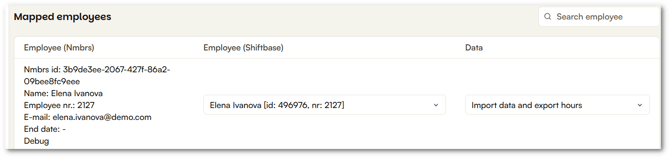
In the new integration, employees have a different Nmbrs id. This is now a long code, for example 3b9de3ee-2067-427f-86a2-09bee8fc9eee. If you migrate before March 1, 2027, the employees are migrated automatically. You find them under Mapped employees, with the same link to your Shiftbase employee and the same link level, for example Import data and export hours.
Old Nmbrs ID: 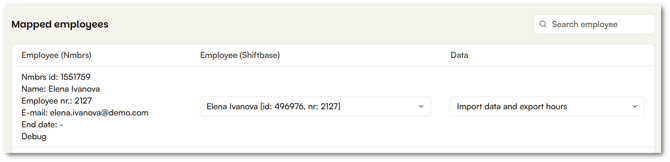
New Nmbrs ID:
I have multiple Nmbrs integrations. What now?
Migrate every integration with a warning separately. Do this the same way for each integration.
What if I do not migrate in time?
After March 1, 2027 you can no longer migrate your integration or reconnect it with your username and token. You then create a new Nmbrs integration and set it up from scratch. You can read how in Visma Nmbrs integration.